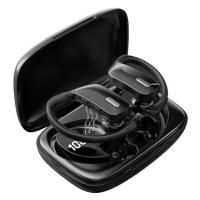
How To Check Wireless Earbuds Battery?
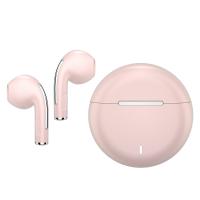
Wireless earbuds are one of the best inventions to emerge in the last few years, offering freedom from tangled cables and enabling seamless audio experiences across numerous devices. They're sleek, functional, and incredibly portable. But there’s one issue that can ruin this wireless utopia: suddenly running out of battery mid-podcast, Zoom meeting, or gym session. Knowing how to check the battery level of your wireless earbuds is not only practical, but it can save you from moments of frustration. Let's dive into the steps you can take to monitor the charge level of your earbuds and avoid that dreaded low-battery notification.
First and foremost, checking the battery level of your wireless earbuds depends on the brand, the device you're connecting to, and the earbuds' operating system compatibility. Each manufacturer tends to put their own spin on battery monitoring features, and your experience can range from convenient visual indicators to a somewhat cryptic multi-step process. Let’s cover the most common methods across popular platforms and devices.
Method 1: Check on Your Smartphone (iOS and Android)
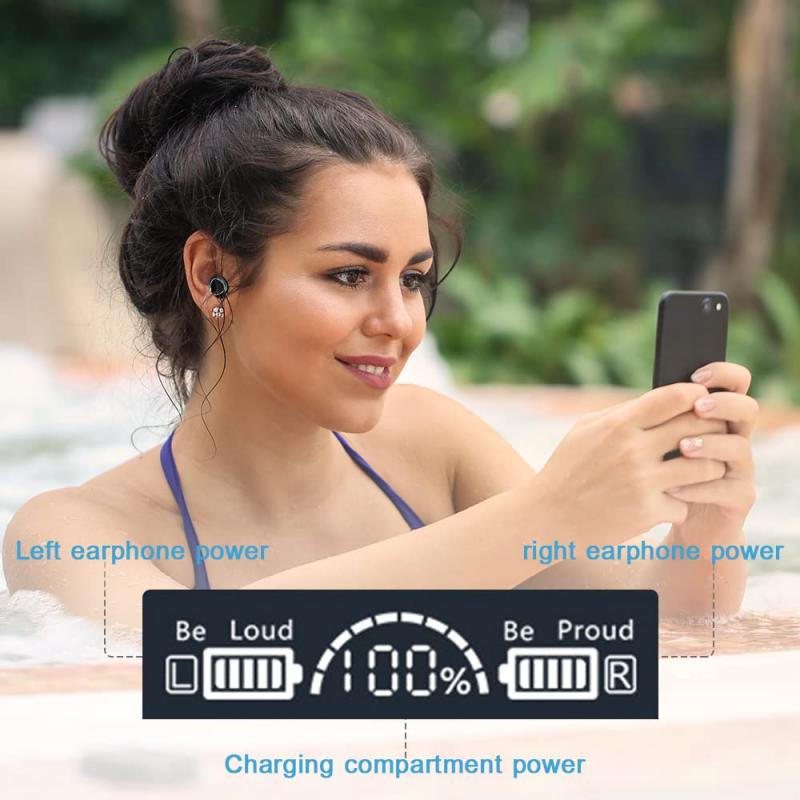
Most modern wireless earbuds, particularly those equipped with Bluetooth 4.0 and above, transmit battery information to your paired smartphone. If you're using earbuds like AirPods or Galaxy Buds, your phone will almost certainly allow you to check the battery status easily. Here's how to do it:
For iOS Users

Apple users are in luck, as iPhones have a tightly integrated system for monitoring wireless earbud batteries. Follow these steps:
1. Widgets & Control Center: Swipe down from the top-right corner (on iPhone models with Face ID) or swipe up from the bottom (on models with a home button) to bring up the Control Center. If your AirPods are connected, their battery status will often appear in the Bluetooth section.
2. Battery Widget: For more detailed battery information, you can enable the Battery Widget. Long-press the home screen, tap the “+” icon to bring up the widget selection menu, and choose Battery. Once added, the widget displays the charge levels of your Apple devices, including AirPods and their case.
For Android Users
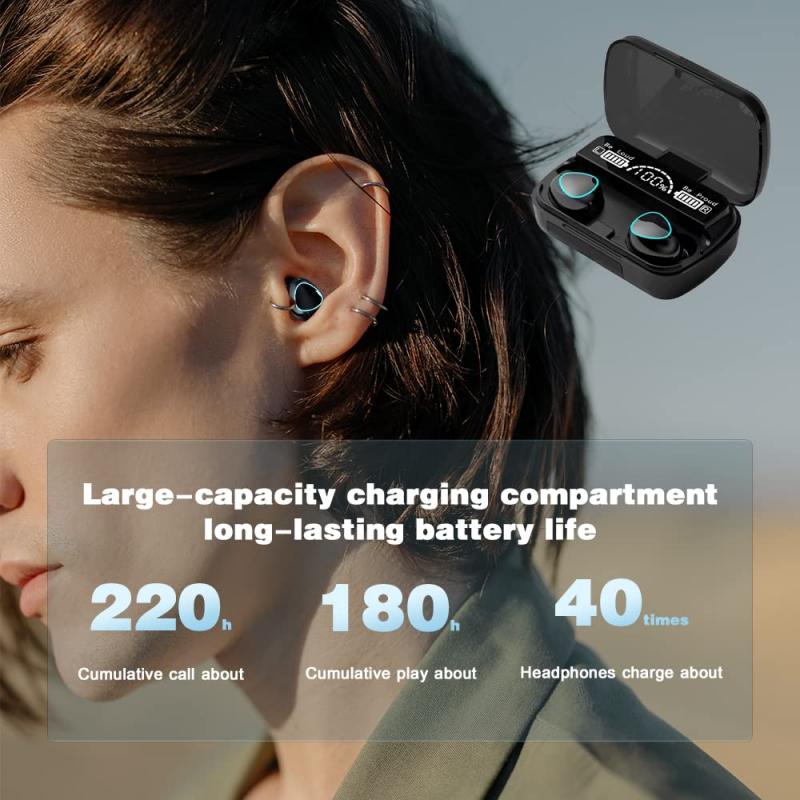
Android doesn’t have a universal system for checking battery levels, but many earbuds come with companion apps that display detailed stats. For example:
1. Quick Settings Panel: Some devices show connected Bluetooth device battery levels in the notification shade or quick settings panel. Drag down from the top of the screen for access.
2. Dedicated App: Brands like Sony, Bose, and Jabra provide companion apps that give you a breakdown of the battery percentage for each earbud and their case. Download and sync the relevant app for accurate information.
If your earbuds don’t transmit battery stats to your phone, you may need to rely on audible cues. Most earbuds emit a voice prompt to alert you when they’re running low on charge, typically saying something like “Battery Low” or “Please Charge.”
Method 2: Monitor Battery on a Paired Laptop or Desktop
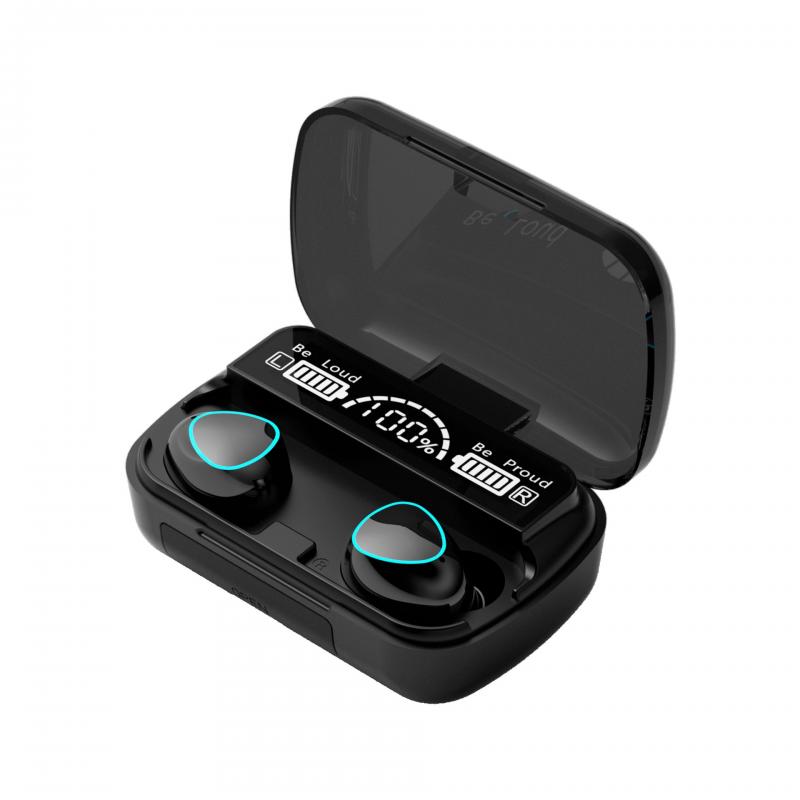
Whether you’re pairing your earbuds with a Windows PC or Mac, you can still access battery information in most cases:
On Windows
1. Bluetooth Settings: The fastest method is through the Bluetooth settings. Navigate to `Settings` → `Devices` → `Bluetooth & other devices` and select your connected earbuds. If your earbuds support battery reporting, the percentage should appear right next to the device name.
2. Third-Party Apps: If Windows doesn’t provide this capability natively, consider installing third-party software like Bluetooth Battery Monitor, which can provide battery metrics for your connected devices.
On macOS
Apple's macOS system provides seamless integration for Bluetooth devices like AirPods. Follow these steps:
1. Click the Bluetooth icon in the menu bar (or System Preferences).
2. Hover over your connected earbuds. If supported, their battery percentages for both the earbuds and the charging case will be displayed.
Method 3: Indicator Lights on Charging Case or Earbuds
For the minimalist user who doesn’t want to rely on apps or widgets, most earbuds come with built-in LED indicators. These can provide a rough approximation of the battery level:
1. Single Light Indicator: Many cases have a single LED that glows green when your earbuds and case are sufficiently charged, yellow when at medium levels, and red when the charge dips into dangerous territory.
2. Device-Specific LED Feedback: For instance, some earbuds like Beats Studio Buds feature separate lights for each earbud and additional lights for the case.
While these lights don’t usually give the exact percentage, they’re useful for quick checks.
Method 4: Voice Prompts or Notifications
Some earbuds come with voice alerts or sound notifications built into their functionality:
1. Voice Prompts: As mentioned earlier, low-battery warnings often include voice prompts saying “Battery Level Low” or similar instructions.
2. App Notifications: For earbuds with dedicated companion apps, you'll frequently receive charging reminders and battery level updates via your phone.
Tips to Maximize Battery Life
Knowing your earbuds’ battery level is important, but proactive measures to extend their runtime can make a big difference. Follow these tips to get the most out of your earbuds:
1. Keep Your Firmware Updated: Many manufacturers release firmware updates that improve battery efficiency. Check your earbuds' app to ensure you have the latest version.
2. Use One Earbud at a Time: If you're running low, using one earbud while leaving the other one in the charging case doubles the total usage time.
3. Turn Off ANC (Active Noise Cancellation): If your earbuds support ANC, turning it off when you don’t need it can considerably extend battery life.
4. Store in the Case: Always place your earbuds in the charging case after use. Leaving them outside risks unnecessary battery drain.
Troubleshooting Low-Battery Alerts
Some users report issues where earbud battery indicators give inconsistent or inaccurate readings. This can happen when earbuds lose syncing ability with their charging case. Here’s how to resolve it:
1. Reset your earbuds and case per manufacturer instructions.
2. Clean the charging case and earbuds’ contact points to ensure proper alignment and connectivity.
Final Thoughts
Knowing how to monitor the battery level of your wireless earbuds is more than just a feature—it’s a skill that ensures uninterrupted listening, speaking, and working experiences. With multiple ways to verify battery status across devices and platforms, there's no good excuse for being caught off guard. Whether you're using the sleek widget on your iPhone or deciphering blinking LEDs on your earbud case, always keep an eye on those battery levels. After all, the only thing worse than running out of charge mid-conversation is realizing you’ve been shouting “Hello? Hello?” into a disconnected earbud for the last five minutes. Keep your tech charged, people!