What Is Voice Recorder On Iphone?
There it sits, unobtrusively tucked away amidst your apps—a piece of software that many iPhone users overlook. Its name? Voice Memos. But don’t be fooled by the unassuming name or its simple icon of a sound wave; this app is no less than a pocket-sized powerhouse that transforms your iPhone into a highly capable voice recorder. Whether you’re recording your thoughts on the fly, capturing an impromptu song idea, or documenting lectures and meetings, Voice Memos can handle it all with finesse. If you’ve ever wondered, “How does this seemingly modest app actually work?” or “What hidden features am I missing out on?”—well, here we go. Let's dive headfirst into the nuances of the iPhone’s voice recorder, exploring why it’s more than just the sum of its parts.
The Basics: What Is Voice Memos and Where Can You Find It?
Voice Memos is Apple’s native audio recording app, available on every iPhone, iPad, and Mac with iOS or macOS pre-installed. To locate it, don’t overthink—just swipe down on your home screen and type “Voice Memos” into the Spotlight search bar. Voilà, it pops right up. Alternatively, look for its black-and-white soundwave icon among your utilities.
Once you open the app, simplicity greets you. Front-and-center is a gargantuan red record button—a bold declaration that action is its only focus. Tap it, and you’re recording; tap it again, and you’re done. What could be easier than that?
But Wait, Let’s Talk About Quality
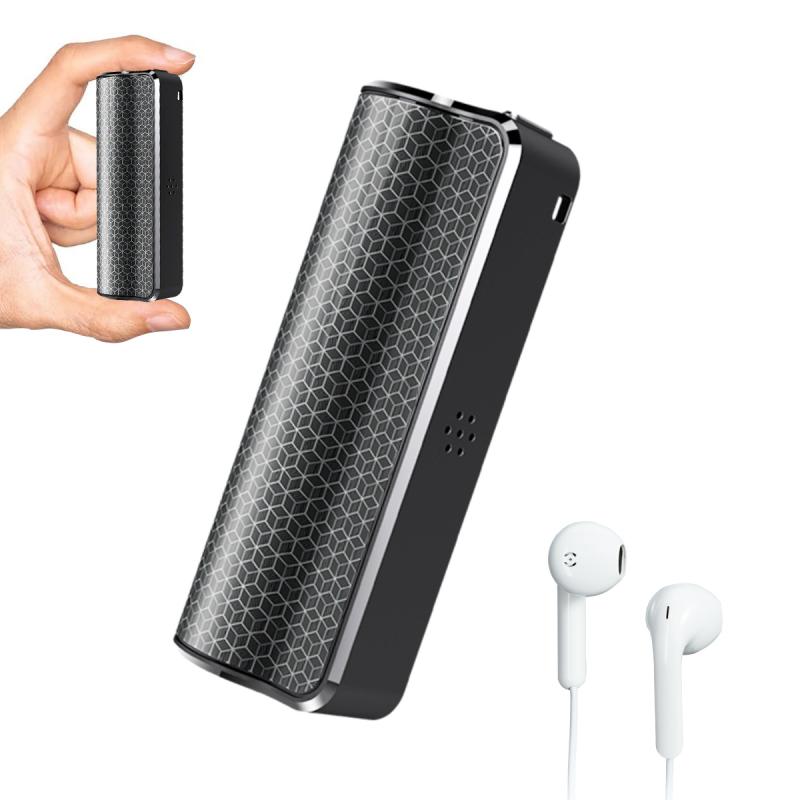
You might ask, “Can the Voice Memos app deliver high-quality recordings?” The short answer is an enthusiastic yes. The app leverages your iPhone’s built-in microphones, which are surprisingly adept at capturing crisp audio. For casual users, this level of quality suffices for everything from note-taking to interviews. But here’s the fun kicker: If you’re looking to up the ante, you can connect an external microphone via Lightning port or USB for even higher fidelity recordings. Audiophiles, podcasters, or budding musicians, take note—this one’s for you.
Recording Tips for Optimal Results
No one wants muffled recordings filled with background noise, right? For that reason, treat this section like your compass for clear audio:
1. Microphone Positioning: The microphones on most iPhones are positioned near the bottom edge (speaking end) and sometimes near the back camera. Hold your iPhone at a moderate distance (around 6 inches) and angle it toward the source.
2. Environment Matters: Choose a quiet space, away from the whirring fan of your computer or the din of street traffic. If you’re in a pinch and can’t escape the hubbub, consider using directional microphones to limit interference.
3. Audio Monitoring: When recording important material, wear headphones to monitor the playback quality in real-time.
4. Test Runs: Try a quick test recording before diving into the main session. Some experimentation goes a long way, and you’d rather notice any mic issues before recording a crucial interview.
Editing Magic Inside Voice Memos
Beyond recording, this app has some deceptively powerful editing tools tucked under its belt. Here’s the lowdown on what you can do:
Trim and Split: Got some fluff you need to remove from an otherwise perfect recording? Tap on your saved memo, hit "Edit," and use the trim feature to snip out unwanted sections. For highly specific edits, you can even split recordings into segments and rearrange them.
Enhance: Found yourself in an environment where noise just couldn’t be helped? Apple’s recent update includes an “Enhance Recording” tool. With one tap, the app automatically reduces background noise while amplifying clarity on the vocals. It’s like Houdini for audio.
Rename Files: Organizational junkies, rejoice—you can rename recordings to something meaningful. Instead of “Memo 1,” go with “Grandma’s Birthday Interview” or “Awesome Idea for Startup.”
Sharing and Exporting: Because Your Voice Needs to Travel
Once you’ve recorded and edited your magnum opus, Voice Memos makes sharing ridiculously simple. Tap the “…” icon next to your recording and select “Share.” From there, send your file via Mail, Messages, AirDrop, or even copy it directly into your preferred cloud storage like Google Drive or iCloud. The app uses standard m4a audio formats, which are widely compatible with most playback software.
For professionals who need their recordings in specific formats—say, WAV or MP3 for podcast editing—the good news is that exporting via a third-party audio-converting tool gets the job done effortlessly.
Use Cases You Never Thought Of
By now, you may be wondering, “Do I even need this app?” Oh, my friend, the possibilities are endless. Here are just a few creative uses for Voice Memos:
1. Music Composition: Capture that fleeting melody in your brain before it disappears forever.
2. Language Learning: Record your own voice to gain fluency or engage in pronunciation practice.
3. Journalism: Perfect for interviews with sources when you’re out in the field—no bulky equipment required.
4. Collaboration: Share recorded ideas with your team, especially for creatives.
5. Health Tracking: Keep verbal notes on your daily workouts, diet, or even mental health journaling.
Fun Tricks to Elevate Your Voice Memos Game
Now, here’s where things get a little nerdy:
1. Marking Important Points: During a recording, you can pause and add a bookmark so you can quickly revisit the best bits without re-listening to the entire file.
2. Utilize iCloud Sync: Your recordings automatically sync across devices as long as iCloud is enabled. This means you can start a recording on your iPhone and finish editing it on your Macbook.
3. Shortcut Happiness: Create a Siri Shortcut to launch Voice Memos hands-free for those eureka moments when both hands are tied.
Overlooked Compatibility Bonuses
Ever had a moment of panic thinking, “Will my Voice Memos file transfer cleanly into professional editing software?” Rest easy—these files work seamlessly with industry-standard tools like GarageBand, Adobe Audition, or Logic Pro. Plus, thanks to Apple’s reliable codecs, the audio quality holds up during processing.
Final Thoughts: The Unsung Hero in Your App Arsenal
To call Voice Memos "just a voice recorder" is to seriously underestimate its value. It's a Swiss Army knife for your auditory needs—a tool whose simplicity masks its sheer versatility. Whether you’re a casual user jotting down grocery lists via audio or a burgeoning audio producer capturing high-quality sound bites, this tiny app can handle it all.
The fact that Apple has bestowed such a robust utility upon its users—complete with editing functionalities at no extra cost—speaks volumes about its commitment to practicality. This is technology doing what it should: making life easier. And as for you, dear reader? Go ahead, poke around, experiment, and see what kind of magic you can create with this tiny powerhouse sitting quietly on your home screen.