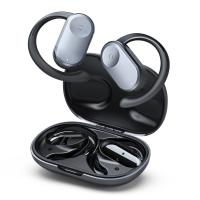
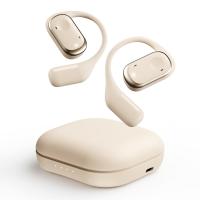
How Do You Connect Bluetooth Earbuds?
Bluetooth technology is one of those inventions that slowly crept into our daily lives, and now we wonder how we ever lived without it. Connecting Bluetooth earbuds might seem simple, but it's not uncommon to run into snags along the way. Whether you're pairing them for the first time or struggling to reconnect after a firmware update or factory reset, this guide will break it down to ensure you’re not left frustrated—and help you troubleshoot if the process isn't as straightforward as it should be.
Understanding the Basics: Your Bluetooth Earbuds and Your Device Need to "Match."
In essence, Bluetooth pairing is like introducing two people at a party. Your earbuds and your device need to "meet" and establish a secure handshake before they can reliably communicate. However, just like in real-life conversations, they’ll sometimes need a translator—or a bit of intervention—to get things going.
Start with this checklist:
1. Charged Earbuds: Your earbuds should have enough juice to power on and stay on during the pairing process.
2. Device Bluetooth: Check that Bluetooth is enabled on your phone, computer, or other device. Locate it in your device's settings menu—it’s usually hard to miss.
3. Proximity: Keep the earbuds close to the device you’re trying to pair them with. Bluetooth range is generally limited to about 30 feet, but pairing works best when the devices are within a few feet.
Step-by-Step Pairing Instructions
Here’s your cheat sheet for pairing your Bluetooth earbuds to either a smartphone or computer. While most pairing processes will feel similar, earbuds from different brands might have slight variations in steps.
1. Get Your Earbuds Into "Pairing Mode":
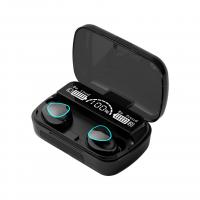
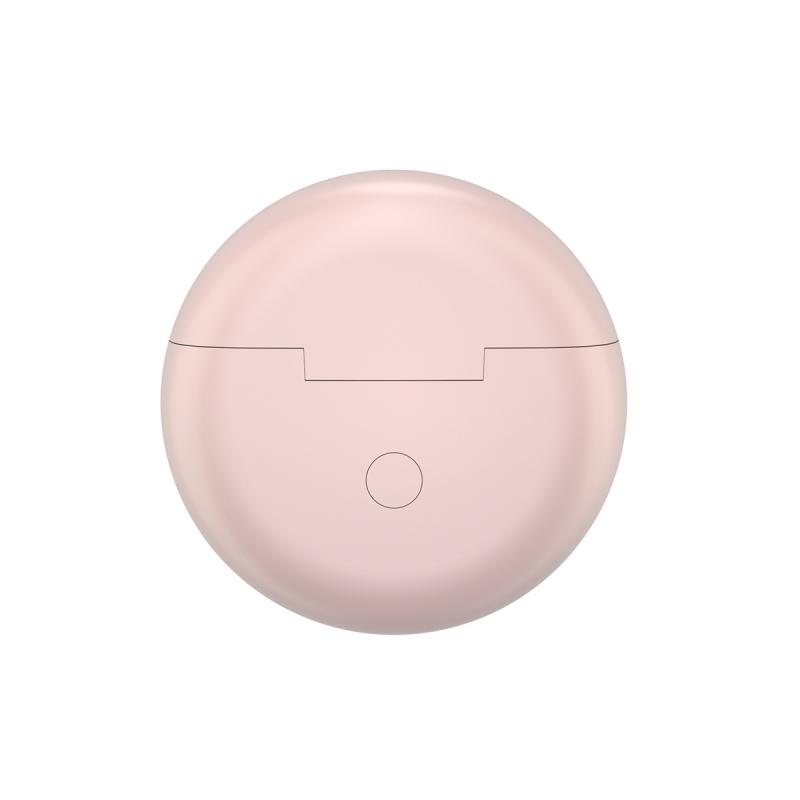
- With most models, holding down a button (usually the power button or a dedicated Bluetooth button) activates pairing mode. Look for flashing lights—typically blinking blue/white—indicating they’re searching for a device to connect to. Some premium earbuds, such as Apple's AirPods, might automatically enter pairing mode when the case is opened near a compatible device.
- If you’re unsure, consult your earbuds' user manual, which is often available online if the paper version is long gone.
2. Open Bluetooth Settings on Your Device:
- Smartphone (Android or iOS): Navigate to Settings > Bluetooth. On Android, you might also swipe down from the notification shade and long-press the Bluetooth icon to jump directly to the settings.
- Computer (Windows or macOS): On Windows, search for "Bluetooth & Other Devices" via the Start menu. On Mac, Bluetooth settings can be found under System Preferences or the Control Center.
3. Scan for Devices:
- Once your earbuds are in pairing mode, they should show up on your device’s Bluetooth settings. The earbuds will often appear with their model name, such as "Galaxy Buds Live" or "Sony WF-1000XM4." Select the name from the list.
4. Confirm the Pairing:
- Some devices might ask for confirmation, such as pressing "Connect." Occasionally, for older Bluetooth accessories, you'll be prompted to input a passkey—most often "0000" or "1234."
5. Success! Or Maybe Not…
- If the pairing is successful, congrats: your earbuds and device will exchange virtual high-fives. But if it fails, proceed to the troubleshooting section below.
Troubleshooting When Bluetooth Goes Rogue
So your earbuds refuse to cooperate? No worries—you’re not alone. Bluetooth quirks are practically written into the technology’s DNA. Here are common issues and how to fix them.
1. Your Device Can’t Find the Earbuds:
- First, ensure your earbuds are actually in pairing mode. Sometimes, powering them off and back on helps. Resetting them to factory settings, if there's a reset feature, can also clear invisible configuration hiccups.
- Turn off Bluetooth on your device for 10 seconds and toggle it back on. Retry the pairing process.
2. There’s Already a Previous Connection:
- Many Bluetooth earbuds automatically try to reconnect to the last device they were paired with. If they’re stubbornly clinging to an old companion (like your laptop), it might prevent pairing with your phone. Either manually disconnect or forget the old device, then try pairing anew.
3. Interference and Range Problems:
- Bluetooth is susceptible to interference from Wi-Fi routers, microwaves, and even large metal objects. Try moving to a different room or unplugging nearby devices during pairing.
4. Outdated Software:
- Both your device and your earbuds benefit from being updated to the latest firmware or operating system version. Check your earbuds’ manufacturer website or app for available firmware updates.
5. Compatibility Issues:
- Not all Bluetooth devices play nice with one another, especially older earbuds using outdated Bluetooth protocols. Check if your earbuds are compatible with your device’s Bluetooth version.
Tips for Maintaining a Stable Connection Once Paired
Successfully pairing your earbuds is just the beginning. Connections can drop or falter over time due to various factors. Here’s how to prevent or fix these interruptions:
1. Keep Devices Within Range: Wandering too far from your device or placing physical barriers between your earbuds and phone or laptop—like multiple walls—can break the connection.
2. Optimize Bluetooth Priority: If you’re switching between multiple devices throughout the day, prioritize the device you use most frequently by "forgetting" the earbuds on other devices. This reduces pairing conflicts.
3. Clean the Charging Case and Earbuds: Dust or grime can mess with sensors that interact with your device, causing intermittent connection problems. Wipe earbuds and case regularly with a clean, dry cloth.
4. Regular Updates: Manufacturers often push software updates to improve battery efficiency and stability. If your earbuds come with a companion app, install it to stay on top of updates.
5. Turn Off Unnecessary Connections: If your earbuds keep failing to pair or the audio cuts out, deactivate Bluetooth connections on unused devices. This reduces interference.
A Few Pro Moves to Smoothen the Experience
Multipoint Pairing: Many modern earbuds let you connect to two devices simultaneously, such as your laptop and smartphone. If your earbuds support this, dive into the settings menu or consult the manual to activate multipoint pairing—it’s a game-changer.
Name Your Device: Customizing your earbuds' Bluetooth name (via the device settings) helps you identify them quickly when scanning for devices. This is particularly handy if you own multiple Bluetooth accessories.
Audio Codec Settings: If you’re an audio enthusiast and your earbuds support advanced Bluetooth codecs (like aptX, AAC, or LDAC), ensure your device is set to use the highest-quality codec available.
At first glance, pairing Bluetooth earbuds might seem like an unremarkable task, but it’s a microcosm of the broader tech world. Success often boils down to attention to detail, a little patience, and the willingness to debug when things don’t go as planned. Moreover, once your earbuds become your loyal audio companion, you’ll be glad you took the time to configure them properly. Because when the music hits, you—or your audiobooks, podcasts, or Zoom meetings—deserve nothing less than a seamless wireless experience!