How To Connect A Security Camera?
The world of home security cameras might feel like a labyrinth of cables, compatibility issues, and technological jargon, but don’t worry—this guide will arm you with all the tips, tricks, and strategies necessary to turn that blinking, intimidating device into an invaluable round-the-clock guardian. Whether you're a weekend DIY warrior or someone who breaks into a sweat at the mere sight of an "installation instructions" booklet, this step-by-step walkthrough will ensure your camera is functional, online, and protecting your property effectively.
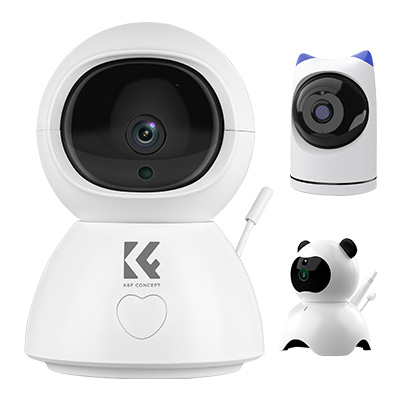
Let’s dive into the universe of cables, apps, and Wi-Fi setup, while making your security installation journey as smooth as possible.
Step 1: Decide on Your Camera Type
First things first—what type of security camera are you dealing with? While diversity enriches life, it complicates camera setups. There are essentially four types:
1. Wired Cameras: Traditional cameras requiring hardwired connections to power and data (usually a DVR/NVR system).
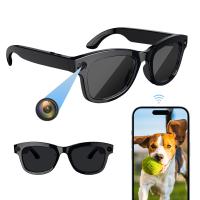
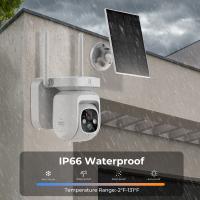
2. Wireless Cameras: Wi-Fi-enabled cameras offering mobility but still requiring a power source.
3. Battery-Powered Cameras: Completely cordless. Power supply comes from rechargeable batteries.
4. PoE Cameras: Powered over Ethernet, these beauties use a single cable for both power and data transmission. Clean and elegant!
If your camera came as part of a kit (with recorders, storage devices, or sensors), some setup steps will be streamlined due to pre-configuration. Standalone cameras, however, may need a bit more finesse. After deciding your type, it’s time to move forward.
Step 2: Choose the Perfect Location
Security begins with visibility. You’ll need to answer two essential location-related questions:
1. Where do I place the camera for optimal coverage?
Generally, entrances, exits, driveways, and blind spots are ideal locations. Avoid pointing it at glass, as reflections mess with image quality and motion detection. For outdoor cameras, consider installing them at height to avoid tampering.
2. How close is the camera to power outlets or routers?
If you’re using wired cameras, you'll cheer knowing that outdoor placement challenges can be solved with extension cables. Battery-powered cameras offer maximum flexibility but need accessible positions for recharging.
Route your wires responsibly (if required) to avoid tripping hazards or unsightly cable clutter. Once the location is sorted, congratulations—you’re ready to proceed!
Step 3: Install the Camera Hardware
Let’s get physical—installation time. Here’s how to do it, camera type by camera type:
1. Wired Cameras: Drill holes, mount brackets, and feed cables through walls or conduits. Secure the camera to the bracket, ensuring the camera angle is suitable before tightening screws.
2. Wireless Cameras: Mount the device using screws or adhesive mounts. Since you aren’t dragging cables around the house, the process is often quicker. Plug the device into a nearby outlet once installed.
3. Battery Cameras: Simply attach the camera to your preferred mounting location. Some models come with magnetic mounts for added convenience. No messy cables to worry about, but do keep track of battery life expectations.
4. PoE Cameras: Feed the Ethernet cable through to your router or switch. That single cable handles power and data simultaneously—truly a marvel of modern engineering.
Before finalizing your mounts, always test your camera angles and fields of view.
Step 4: Power It Up
All cameras—including wireless, wired, battery-powered, and PoE versions—require juice to function. Plug your wired cameras into their designated outlets or DVR/NVR systems, pop a battery into portable models, or fire up your PoE camera after plugging in the Ethernet cable. Typically, you’ll notice a blinking LED light as your camera begins its power-on self-test.
For first-time users: many cameras may require firmware updates as part of initial activation. Don’t skip these updates; they’re your security camera’s first line of defense against vulnerabilities.
Step 5: Connect to Wi-Fi or Network
And now the fun begins. Most modern cameras provide seamless pairing through companion apps or desktop software. Generally, you’ll follow these steps:
1. Download and Install the App: Locate the app recommended by your camera manufacturer—often available on iOS and Android stores.
2. Create an Account: Register or log in. This step ties your camera to your cloud account (if applicable).
3. Network Pairing: Turn on your camera and follow the app’s prompts. For Wi-Fi cameras, select your network, enter the password, and wait for confirmation of successful pairing.
4. PoE Cameras: These sidestep the need for Wi-Fi pairing since they connect directly to your router. Their setup often involves configuring software on a computer or NVR.
The process can vary slightly depending on the brand, but manufacturers excel in providing step-by-step onboarding instructions. Many also support QR code scanning for no-hassle linking.
Step 6: Configure Settings and Fine-Tune
Here's where your inner Picasso gets to work—you’ll tailor everything precisely as you want it. Some common settings you’ll adjust are:
Motion Detection Sensitivity: Prevent endless notifications for every passing squirrel. Spike up sensitivity for high-risk zones; dial it back elsewhere.
Alerts: Whether it’s email alerts or app notifications, customize these to your preference. Pro tip: silence during bedtime if you don’t need over-the-top coverage.
Storage Options: Decide where footage goes—cloud solutions provide offsite backups, while SD cards enable private storage. Ensure sufficient space is allocated.
Privacy Zones: Mask off sensitive areas (neighboring windows, etc.) to comply with legalities and ethical standards.
Don’t forget to test your live view, playback options, and remote access features to verify everything works flawlessly.
Step 7: Integrate with Other Smart Devices
Security cameras thrive when part of a larger ecosystem. Consider connecting them to smart assistants like Amazon Alexa, Google Home, or Apple HomeKit. This enables voice-activated controls and makes reviewing footage even easier.
If you're rocking multiple smart home gadgets (lights, alarms, doorbells), look for integration opportunities. Cameras can trigger lights during motion events or sync with your alarm system for layered defense. If automation is possible, go for it—your camera is smart; let it flex its muscles!
Step 8: Maintain Your Security Camera
Security cameras aren’t magical elves. They need regular love and care to keep protecting your property effectively. Here’s your periodic maintenance checklist:
Battery Checks: Confirm the charge of battery-powered cameras every few weeks.
Firmware Updates: Update software promptly to patch vulnerabilities.
Lens Cleaning: Remove dirt, dust, or spider webs. Maintain spotless visuals!
Field of View Adjustments: Recalibrate placement periodically for optimal coverage.
Even the most expensive models lose efficacy if neglected over time. Treat them well, and they’ll repay you with reliable service.
Whether you’re fending off porch pirates, monitoring your backyard, or simply enjoying peace of mind when away from home, security camera installation doesn’t have to be complicated. By following these steps, you’ve turned what could’ve been a tangled mess into a pristine, professional setup. The best part? You’ll sleep soundly tonight knowing you’re in control of your property.
Now go forth and be secure—your cameras are watching over you.