How To Format Sd Card For Game Camera?
Formatting an SD card for a game camera is an essential step that ensures compatibility and reliable operation in the field. Although it might seem like a straightforward task, certain nuances can dramatically affect the camera's functionality. Let's dive deep into the process, unravel common traps, and deliver actionable insights for a seamless SD card preparation.
Game cameras—or trail cameras—are treasure troves for capturing wildlife moments, monitoring hunting zones, or securing property. However, a malfunctioning SD card can singlehandedly ruin your entire setup. You may return after weeks of anticipation only to find that the camera didn’t record at all. This failure often stems from improper formatting.
Understanding SD Card Basics
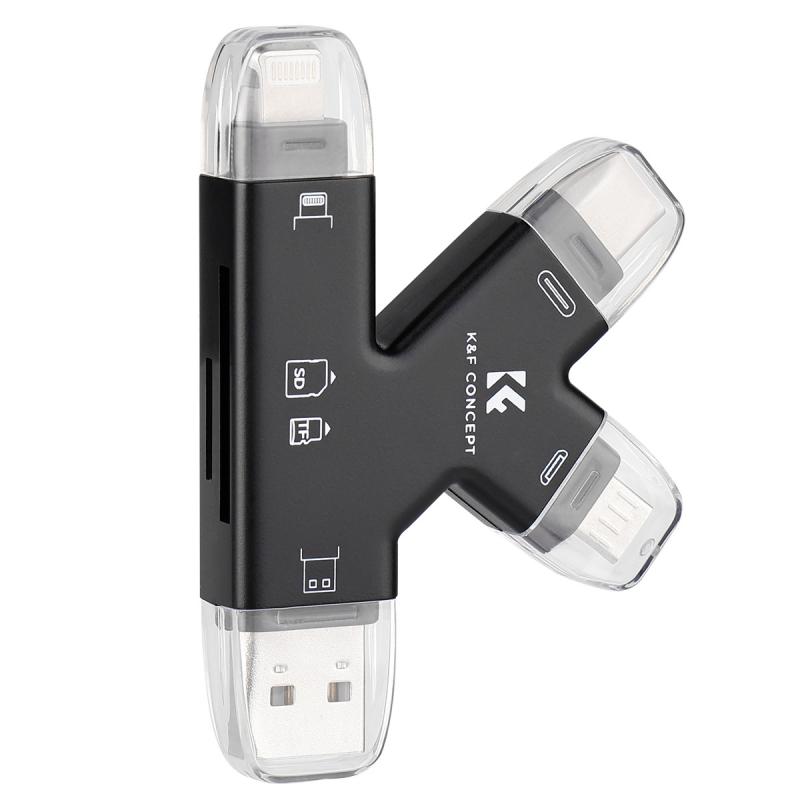
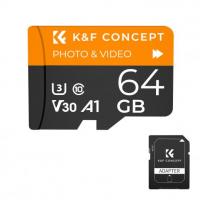
Before you proceed to formatting, let’s cover foundational knowledge. SD cards come in various formats, such as SD, SDHC, and SDXC. Game cameras typically only work with SDHC (up to 32GB) or SDXC (above 32GB) cards; the latter is less common in lower-priced camera models.
Game cameras process data in specific file systems—commonly FAT32 or exFAT. Most cameras prefer FAT32 for cards under 32GB and exFAT for cards above that size. Formatting your SD card ensures compatibility by matching these file system requirements.
Preliminary Steps
1. Check Your Game Camera’s Specifications: Don’t wing it; inspect your camera manual to confirm the required specs for SD cards. Note the storage capacities, file system, and any specific formatting recommendations.
2. Backup Data: If the SD card you’re about to format already contains data, back it up because formatting erases everything. There’s no "undo" after you click Format.
3. Update Camera Firmware: Outdated firmware can sometimes cause incompatibilities or corrupt formatted SD cards. Check whether your camera manufacturer provides firmware updates.
Step-by-Step Guide to Formatting an SD Card
Option 1: Formatting Directly in the Camera
Most modern game cameras allow you to format SD cards directly from the device. It's the easiest and most fail-proof method because the camera automatically chooses the correct file system for formatting.
1. Insert the SD card into your game camera.
2. Navigate to the camera’s system settings. Look for an option labeled “Format Card” or “Erase All Data.”
3. Select the format option and confirm your selection.
4. Wait for the camera to complete the process. This usually takes under a minute.
Why is this method ideal? Your camera knows its own quirks better than your computer does. Formatting within the camera reduces the risk of errors like unsupported file systems or partitioning mismatches.
Option 2: Formatting on a Computer
While formatting on a computer gives you greater control, it requires precision. Here’s how to do it:
On Windows
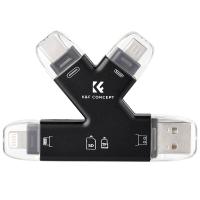
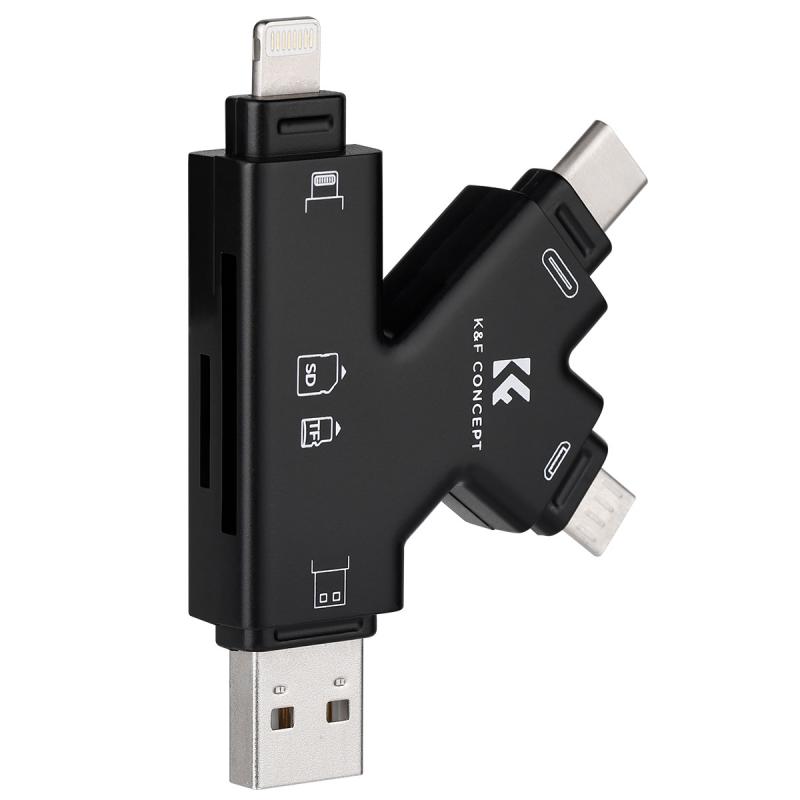
1. Insert the SD card into your computer using its SD card slot or a USB card reader.
2. Open "File Explorer" and find your SD card in the “This PC” section.
3. Right-click on the SD card and select “Format.”
4. Choose the appropriate file system:
- FAT32 for cards up to 32GB.
- exFAT for cards larger than 32GB.
5. Check the box for "Quick Format" (leave unchecked if you suspect corruption and want a full wipe).
6. Click “Start” and wait for the system to finish formatting.
7. Eject the SD card safely.
On macOS
1. Insert the SD card using a card reader.
2. Open the "Disk Utility" application.
3. Select your SD card in the sidebar.
4. Click “Erase” to bring up formatting options.
5. Set the format type to “FAT32” or “exFAT,” matching the camera’s requirements.
6. Proceed with the operation and safely eject the card once done.
Troubleshooting Formatting Failures
Even after formatting, some SD cards might cause headaches:
1. Card Won’t Read in Camera: Check whether the file system matches—you might’ve accidentally chosen NTFS, which most game cameras don’t support. Reformat to FAT32 or exFAT.
2. Camera Errors After Formatting: If your camera keeps throwing error prompts, the SD card might have become corrupted over time. Use specialized software like SD Card Formatter by the SD Association to repair the card.
3. Performance Issues: Cheap or worn-out SD cards can result in long save times, skipped recordings, or corrupted files. Always opt for high-quality SD cards from brands like SanDisk or Lexar.
Pro Tips for Longevity
1. Avoid Generic SD Cards: Trust me, those unbranded, wallet-friendly SD cards will fail you in the field. Game cameras need reliably fast read-write speeds, typically rated as Class 10 or UHS-I/UHS-II.
2. Periodically Reformat Cards: Every time you’ve archived your game camera recordings, format the SD card again. Overwriting old data increases the risk of file corruption.
3. Opt for Waterproof Cards: A muddy forest is no place to test your electronics’ durability. Look for cards labeled “waterproof” or “shockproof.”
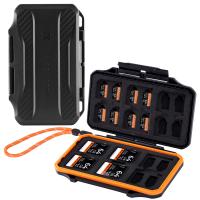
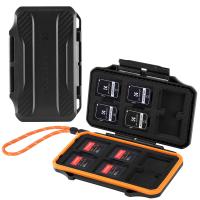
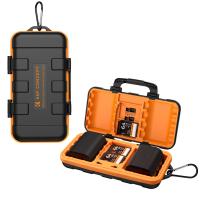
4. Store Cards Properly: Keep SD cards in cases to prevent dust, moisture, and physical damage.
5. Test Before Deployment: Don’t format and run straight into the woods. Test the formatted SD card with your camera for at least 10 minutes.
The Final Word
While formatting an SD card may not seem like the most glamorous part of outfitting your game camera, it’s undeniably crucial. Doing it correctly guarantees smooth operation, stability, and uninterrupted wildlife recordings. Skip corners, and you risk frustration instead of award-worthy footage.
Consider your SD card as the heart of the game camera—it’s where the magic gets stored. Treat it well, format it with care, and you’ll establish a fail-proof bond with your device for seasons to come. Now, go capture those elusive critters!