How To Format Camera Sd Card On Mac?
When it comes to formatting a camera SD card on a Mac, it may seem like a straightforward task, but as with any tech endeavor, the devil's in the details. Formatting is more than just clicking a few buttons—it's about ensuring compatibility, avoiding potential file system errors, and setting up your SD card for optimal performance. If this feels like taking a test without studying, fear not. Below you’ll find a comprehensive guide that breaks it all down step by step.
First, let’s address why you'd want to format rather than just "delete all" your files. When you delete files, you're only removing the "pointers" to those files, but remnants still remain on the disk. Over time, this fragmentation can slow down performance and even corrupt future files. Formatting, on the other hand, completely erases and sets up the file system anew, leaving you with a clean, well-prepared storage space tailored for your camera.
Things to Prepare Before Formatting
Backup Your Files: Once you format the SD card, your data is gone for good (at least without professional recovery software). So, if there’s anything worth saving, move it onto your Mac, an external drive, or cloud storage.
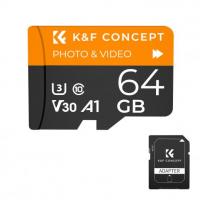
Check Your Camera’s Requirements: Your camera might prefer specific file systems like FAT32 or exFAT. This ensures compatibility after formatting.
Inspect Your SD Card: If your card previously experienced issues (e.g., errors while reading/writing files), run diagnostics using third-party tools to ensure it's in good working condition.
Step 1: Insert the SD Card
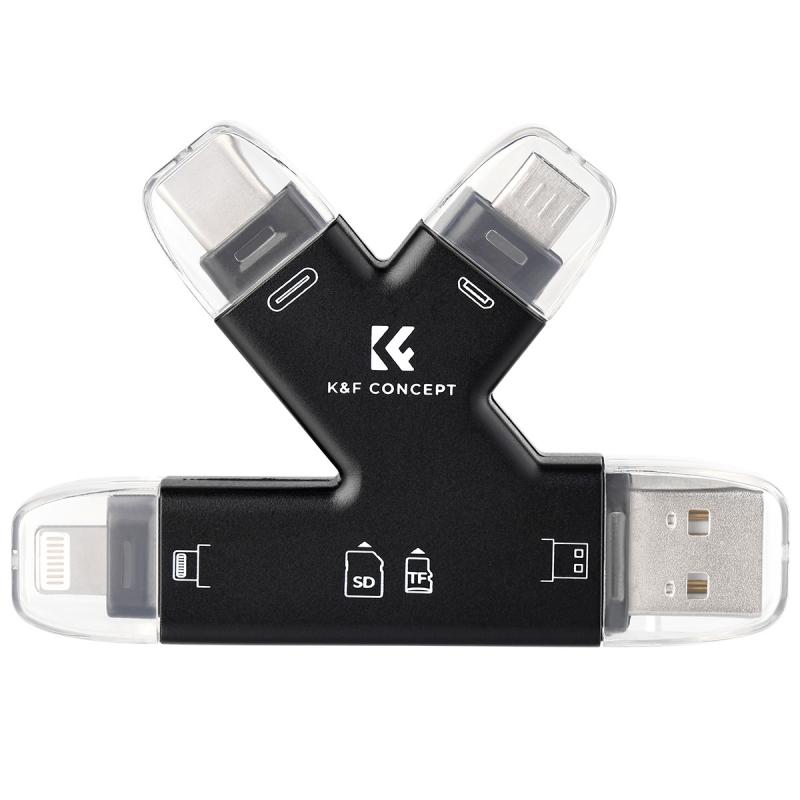
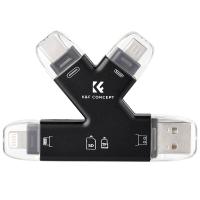
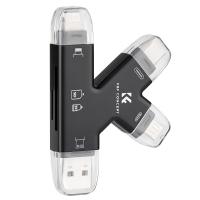
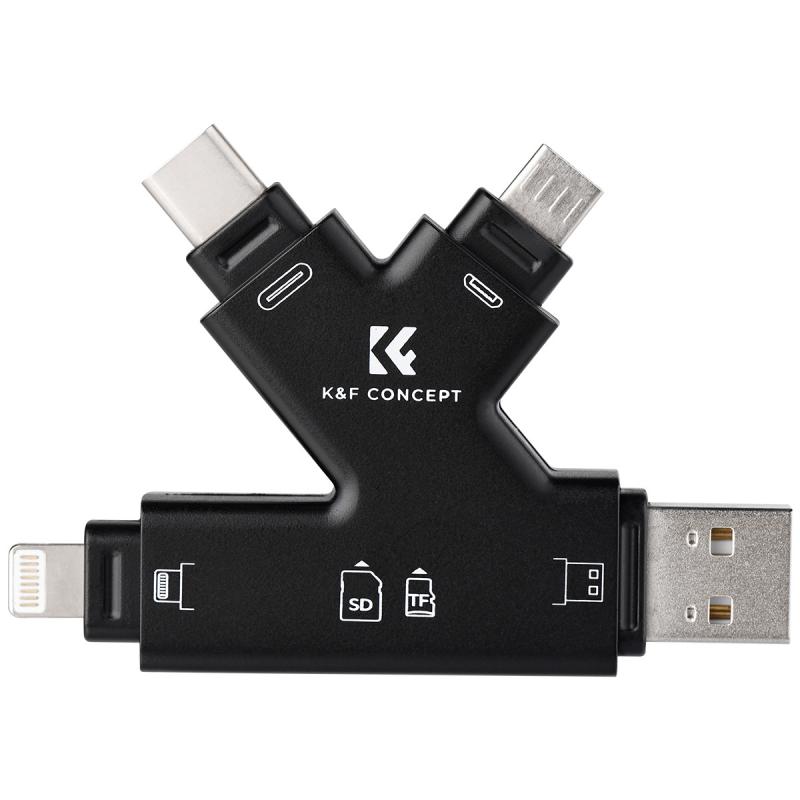
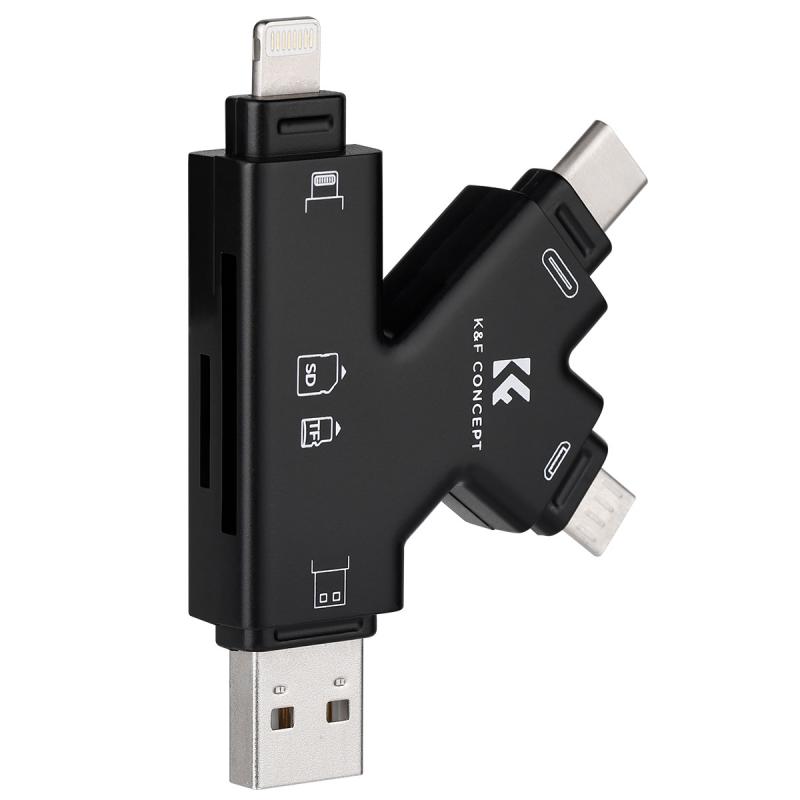
Grab your SD card and either insert it into the built-in SD card reader on your Mac or use an external card reader if necessary. Once connected, it should appear on your Mac as an external drive. Check the Finder's sidebar or desktop for confirmation.
Step 2: Open Disk Utility
Disk Utility is your go-to tool for managing drives on a Mac. To open it:
1. Press `Command + Space` to launch Spotlight, then type "Disk Utility" and hit `Enter`.
2. Alternatively, navigate through Finder: Applications > Utilities > Disk Utility.
Disk Utility will present you with a lovely little list of drives on the left-hand side. Now, here's where many users trip up. Your SD card will show up twice in this list: the card itself (a parent drive) and its volume (a child drive indented beneath it). You’ll want to work with the parent drive for a thorough format.
Pro tip: If you’re unsure which drive belongs to your SD card, eject it and reconnect it. The new device that pops up? That’s your SD card.
Step 3: Erase the Drive
Now for the irreversible step—formatting. Follow these steps carefully:
1. Select the parent drive from the left panel (not the indent/child).
2. Click the Erase button at the top of Disk Utility's interface. This opens a dialog box.
3. Here’s where you make the important decisions:
Name: Assign a label for your SD card. If your camera automatically names storage devices, keep it simple. Something like `MEDIA_CARD` works well.
Format: The file system format determines compatibility. Common options:
FAT32 (MS-DOS FAT): Perfect for smaller SD cards (up to 32GB) but limited to files no larger than 4GB.
exFAT: The better choice for larger SD cards (64GB or more) and modern cameras.
- Avoid APFS or macOS Extended formats, as these are Mac-specific and won’t work in cameras.
Scheme: Stick to `Master Boot Record (MBR)` unless your SD card explicitly requires `GUID Partition Map` for some legacy reason.
4. Click Erase and let macOS handle the rest. The process is usually quick, but larger cards may take a few more seconds.
Step 4: Verify
It never hurts to double-check. Once the format completes, the SD card will remount and appear as brand new. To verify everything’s in working order:
1. Open Finder and view the contents of your formatted card (it should be empty).
2. Check the card’s properties (right-click and select `Get Info`) to verify the format (e.g., exFAT) and available space.
Step 5: Set It Up for Your Camera
Technically, you’re done if all you needed was a clean card. But if you're using it in a camera, go the extra mile:
1. Insert the SD card into your camera.
2. Use the camera’s menu system to reformat the card again. Camera-specific formatting ensures the card is uniquely set up for your device and adds any necessary file hierarchies for proper functionality.
3. Snap a quick test shot to make sure everything works. If your camera throws an error ("Card not formatted" or similar), check the file system type—it might need FAT32 if exFAT isn’t supported.
Troubleshooting: What If Your SD Card Doesn’t Show Up?
This is the part where your shiny Mac starts betraying you. But don’t despair:
Check the Card Reader: If your Mac doesn’t recognize the SD card, try using a different reader.
Update Disk Utility: Some older macOS versions fail to format cards larger than 64GB without errors.
Terminal to the Rescue: If Disk Utility still won’t cooperate, use macOS Terminal to access `diskutil`. Simply type `diskutil list`, locate your SD card identifier (e.g., `/dev/disk2`), and manually erase it with commands like `diskutil eraseDisk FAT32 CARD_NAME MBR /dev/disk2`.
When all else fails and your SD card refuses to cooperate, it’s time to consider whether your SD card is corrupt or at the end of its lifespan.
The SD Card Survival Kit: Tips for Longevity
1. Always Properly Eject: Don’t just yank the card out. Right-click or use the `Eject` button in Finder to ensure it's safely unmounted.
2. Buy High-Quality Cards: Cheap SD cards = unreliable performance. Look for trusted brands like SanDisk, Lexar, or Samsung.
3. Use Multiple Cards: Don’t put all your photographic eggs in one SD-card basket. Spread your risk.
4. Avoid Overwriting: Repeatedly formatting a card eventually wears out its memory cells. If possible, rotate cards to maximize their lifespan.
There you have it, a no-fuss way to format your SD card on your Mac without pulling your hair out. Formatting isn’t just about cleansing your SD card; it’s about prepping it for peak performance. So, the next time your card starts throwing tantrums, you’ll know exactly what to do. And now, back to capturing those frame-worthy moments—go make your camera proud!