How To Play Videos From An Action Camera?
Action cameras are essentially the Swiss Army Knife of portable videography. They’re small yet powerful, minimalist yet capable, fast yet… frustrating when it comes to playback if you’re unprepared. If you're scratching your head wondering how to retrieve those adrenaline-packed moments from your action cam and display them on your desired platform, then you’ve come to the right place. Fear not, fellow adventurer—let’s demystify the world of action camera video playback.
Step 1: Understand Your Action Camera's File System
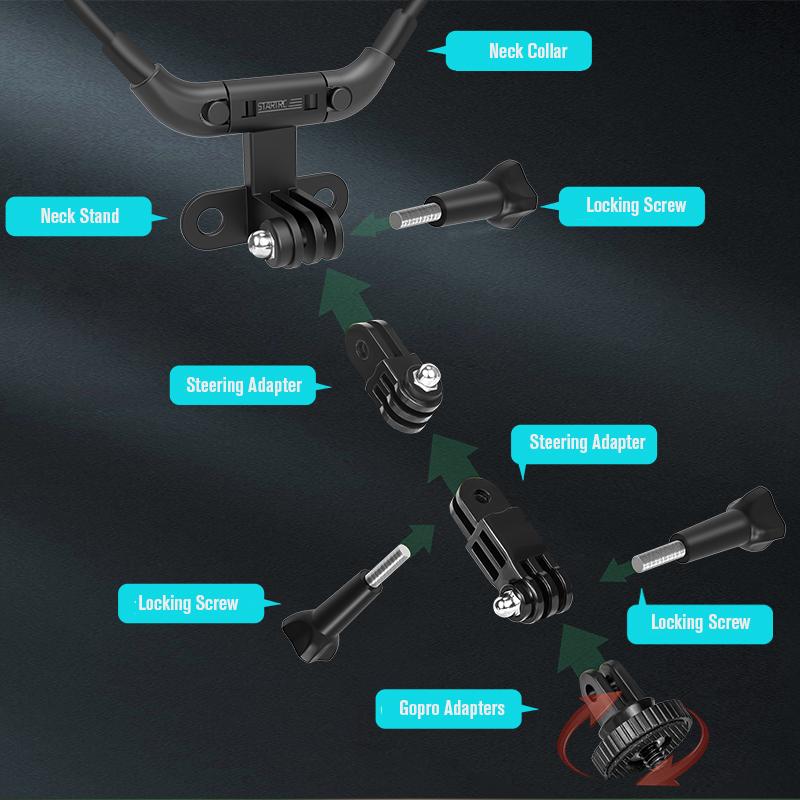
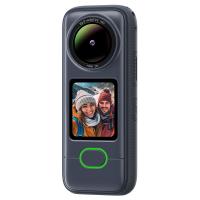
Before we dive headfirst into the nitty-gritty, let's talk formats, because not all action cameras are created equal. These devices commonly record videos in formats like MP4, MOV, or sometimes even proprietary ones. Some record in unusual resolutions and frame rates (hello, 120 fps at 4K), which means your playback device must be capable of decoding them appropriately. If you’re wielding a GoPro, DJI Osmo, Insta360, or similar, understanding its default file format and codec will save you countless hours of debugging.
Step 2: Know Where You Stored the Files
Action cameras are efficient storage magicians. They compress large files into tiny spaces using SD cards, and these cards sometimes seem designed to confuse human beings. Your action camera likely uses a microSD card, tucked away deep inside its innards. You’ll need to locate it, extract it (bonus points if you don’t drop it on the floor and lose it forever), and access the files.
Here are the three scenarios you’re looking at:
1. Direct Playback from the Camera: Your camera might have a “review mode” where you can play videos directly on its tiny built-in screen. Think of this like trying to watch a blockbuster film on an ancient Game Boy—it’s functional but far from satisfying.
2. SD Card Reader via Computer: This is where the magic happens. Insert that microSD card into an SD card adapter (because why would the universe standardize these things?) and plug it into your computer. Voilà! The files are at your disposal.
3. Wireless File Transfer: Some cameras have WiFi or Bluetooth functionality and companion apps. You can beam files straight to your smartphone or computer without ever retrieving the SD card—but beware of slow transfer speeds if your videos are in high resolution. Wireless transfer is like using Morse code to download your files—functional, but painfully slow.
Step 3: Select Your Playback Device
This is where your preferences come into play. Want instant gratification? Smartphones and tablets are great for quick viewing. After a cinematic experience? Fire up your TV, and let those adventure-packed 60 fps clips shine in 4K resolution.
Here’s the lowdown:
Smartphones/Tablets: Perfect for on-the-go viewing. Most modern devices support popular video formats like MP4. Be sure to transfer your videos first using an SD card reader adapter or the camera’s wireless connectivity. Pro tip: Install VLC Media Player—it’s the Swiss Army Knife of video playback software, and can decode even the weirdest file formats.
Computer (Windows/Mac): A computer provides the most flexible playback experience thanks to powerful software options. Connect the SD card, open the folder, and double-click your file to play. Adobe Premiere Pro or DaVinci Resolve are great for editing; VLC or Windows Media Player are adequate for simple playback.
Television: Want to go big? Many TVs now come with USB ports or SD card slots for direct playback. Similarly, if you’re tech-savvy, you can cast your videos wirelessly using devices like Chromecast or Apple TV. Watching your action-packed skydiving footage on a 65-inch OLED is a visual treat.
Step 4: Control Audio and Video Quality
Let’s be real—action camera videos aren’t just about what they look like, but also how they sound. However, audio tracks from these cameras often leave much to be desired. Wind noise, muffled speech, and echo-filled recordings tend to dominate the mix.
To ensure a better playback experience:
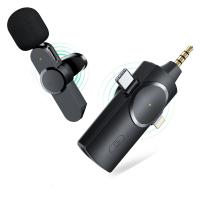
1. Use External Microphones: For any future action recording, pair your camera with an external microphone to record cleaner audio.
2. Invest in Editing Software: Enhance audio quality by using tools like Adobe Audition or Audacity. They will allow you to reduce noise and adjust volume levels for cinematic playback perfection.
Step 5: Playback Challenges and Fixes
Here’s where things can go wrong, but don’t worry, every issue has a solution.
Scenario 1: Unsupported Formats
Your computer feels like it's speaking another language when it tries to play your video file. This happens if you’re using outdated playback software. Solution? Update your media player, or better yet, install VLC Media Player, which is compatible with nearly every file format under the sun. You could also use an online converter to change the video file format to something more universally recognized (e.g., MP4 to AVI).
Scenario 2: Choppy Playback
High-resolution videos—especially those glorious 4K clips—can sometimes stutter during playback if your device isn’t up to snuff. If you’re encountering this issue:
- Upgrade your computer hardware. A better graphics card and additional RAM will make a world of difference in processing larger files.
- Transcode the video to a lower bitrate or resolution for smoother playback on older devices.
Scenario 3: Missing Files
If your SD card decides to play hide-and-seek with your precious videos, don’t panic. Use file recovery software like Recuva or CardRecovery to retrieve corrupted or deleted files.
Step 6: Share Your Adventures
You didn’t go surfing, skydiving, or mountaineering just to hoard these experiences to yourself (unless you’re documenting evidence for a future trial, in which case… no judgment). You’ll want to share your cinematic masterpiece with friends, family, or your Instagram followers.
Follow these tips for better sharing:
1. Optimize for Social Media: Crop or edit your videos into short, attention-grabbing clips. Most platforms prefer formats like MP4, with a maximum resolution of 1080p. High-quality videos often need compressing before uploading to avoid long upload times or platform rejections.
2. Use Smooth Transitions: Prepare your clips in editing tools like Final Cut Pro or Premiere before sharing. These tools allow you to add music, effects, and color grading to give your raw footage a professional vibe.
3. Transfer Videos Easily: Cloud storage platforms like Google Drive and Dropbox make sharing seamless. Ensure your recipients can see the content clearly by granting permissions.
Playing videos from an action camera isn’t just about retrieving raw files—it’s about curating experiences. Every click, swipe, and drag tells a story, and mastering the art of playback ensures your tale isn’t lost in technical mediocrity. So grab your SD card, install VLC, and wow the world—or just yourself—with your high-octane, crystal-clear exploits.
The adventure doesn’t end when you press “Stop.” It's just beginning.