How To Setup Wireless Security Cameras?
Setting up wireless security cameras might seem like an intimidating task to the uninitiated, but with the right steps, tools, and a bit of patience, you'll find that it's not rocket science—though it will let you feel like a tech-savvy genius by the end. Modern wireless security cameras use your Wi-Fi network to communicate, send video footage, and sometimes interact with other smart devices in your home. Let's dive into the details so you can get those cameras humming and your home secured.
## Step 1: Pick the Right Spot (Strategic Yet Practical)
The effectiveness of a wireless security camera hinges on where you install it. Start by evaluating the key areas of your property where you want surveillance. Popular spots include front doors, garages, driveways, and backyard areas.
When choosing a location:
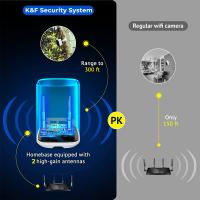
Wi-Fi Signal Strength Matters: Ensure that the spot has reliable Wi-Fi connectivity. A weak signal could lead to laggy streams or no footage at all. Walk around with your smartphone and test the Wi-Fi speed to confirm stability.
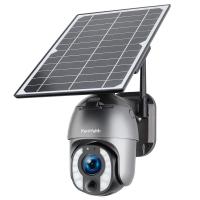
Power Source: While wireless cameras eliminate the hassle of running Ethernet cables, many still require a power source. If yours isn’t battery-powered, ensure there's an electrical outlet within reach.
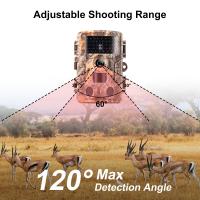
Field of View: Maximize the area the camera can cover. For broader coverage, mount it higher but tilted downward slightly, so you don’t lose sight of vital details like facial features or license plates.
Pro tip: Avoid angling your camera directly toward the sun or shiny surfaces—it’s not aspiring to be a solar panel or a mirror, after all.
## Step 2: Connect the Camera to Power
Most wireless security cameras come with two power options:
Battery-powered: These are fantastic for flexibility—place them anywhere, recharge when necessary, rinse, and repeat. Just keep an eye on battery depletion; depending on usage, some models require frequent recharging.
AC-powered: If your camera relies on an electrical outlet, you may need an extension cord. Make sure the cord management looks tidy—it’s a security camera, not an art installation of tangled wires.
Once connected, you'll see most cameras power up with an enticing show of LED light blinks or audio notifications. That’s the camera’s way of saying, “I’m alive—let’s do this!”
## Step 3: Download the Required Mobile App or Software
Nearly every modern wireless camera comes with companion software or a mobile app. These apps act as the dashboard for controlling the camera, viewing live feeds, adjusting settings, and reviewing footage.
Locate the App: Most brands will explicitly mention the app name in the manual or provide a QR code for easy installation.
Create an Account: Registering an account ensures you have cloud or remote access to your camera feeds. (Remember to use a strong password—we’re not here to carry security cameras only to leave accounts vulnerable to hackers.)
Device Pairing: Follow setup instructions either on the app or via your computer to pair your camera with the Wi-Fi. This usually involves selecting the camera model, entering your Wi-Fi info, and waiting for the cheerful “successfully connected” notification.
## Step 4: Configure Network Settings (Don’t Skip This)
Here’s where you need a bit of extra focus—network configuration.
Strong Wi-Fi Password: Make sure your home network’s password is robust. Avoid anything overly simplistic like “12345678” or “password123.” Hackers love easy prey.
2.4GHz vs. 5GHz Band: Many security cameras prefer 2.4GHz Wi-Fi bands due to their longer reach compared to the 5GHz option, even if the latter provides faster speeds. Verify your camera’s compatibility before proceeding.
Firewall & Router Settings: Enable WPA2 encryption on your Wi-Fi, and, if needed, set up a dedicated guest network where the security camera can connect. This isolates it from sensitive devices on your main network. It’s like giving the camera its own private sandbox.
## Step 5: Adjust Camera Settings
Once the camera is online and linked to the app, it’s time for the virtual tweaking session:
Resolution and Frame Rate: Choose the optimal balance between clarity and storage consumption. While ultra-HD 4K sounds amazing, it can chew through bandwidth and storage like a hungry teenager devours pizza.
Motion Detection: Most cameras offer options to detect movement. Adjust detection zones and sensitivity levels: too sensitive, and you’ll get alerts every time a squirrel decides your yard is its stage.
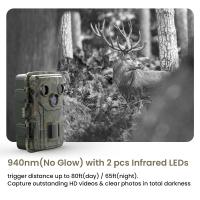
Night Vision: Test the infrared or low-light functionality to make sure the camera performs well in darkness.
## Step 6: Test Alerts and Notifications
One key reason for installing wireless security cameras is to know what’s happening in real-time. Simulate various scenarios to test alerts. Walk in front of the camera, wave enthusiastically, and check for motion detection accuracy. (Bonus points if you make it look like a spy movie.)
Ensure notifications are delivered promptly to your mobile device or email. Configure frequency and types of alerts—e.g., motion detection, sound detection, or custom schedules.
## Step 7: Enable Recording and Storage Options
Most modern cameras offer cloud storage subscriptions, local storage (via SD card), or compatibility with network-attached storage (NAS). Decide what works best for you:
Cloud Storage: Convenient and ensures footage is safe from physical damage or theft, but monthly fees can add up.
SD Card: Cost-effective but limited in space. Make sure your camera automatically overwrites older footage when the card is full.
NAS or DVR: Powerful and versatile but requires extra hardware setup.
## Step 8: Physical Security
What’s the point of securing your home if the camera itself becomes a target? Ensure your device is physically secure:
- Mount it firmly with screws or brackets.
- Weatherproof cameras should be protected from direct exposure to harsh environments (even weatherproof products can only take so much abuse).
- Conceal wires and keep battery compartments out of reach of uninvited guests—or particularly mischievous raccoons.
## Step 9: Integrate Other Smart Devices
Once your camera is up and running, consider integrating it with other smart-home systems like Alexa, Google Assistant, or Apple HomeKit. At this point, you’re not just protecting your home but orchestrating a mini IoT ecosystem. Did someone say "automation swagger"?
## Step 10: Monitor Regularly and Maintain
You’re now ready to sit back, sip your coffee, and don your unofficial surveillance manager badge—but don’t let complacency take over. Regular maintenance is critical:
Firmware Updates: Manufacturers frequently patch vulnerabilities and improve functionality, so keep your device up to date.
Clean the Lens: Dust and grime can cloud your camera’s “vision.” Gently wipe it periodically to keep the image crystal clear.
Review Settings: Periodically inspect and tweak the settings, especially if they’ve been overridden during updates.
Wrapping It Up
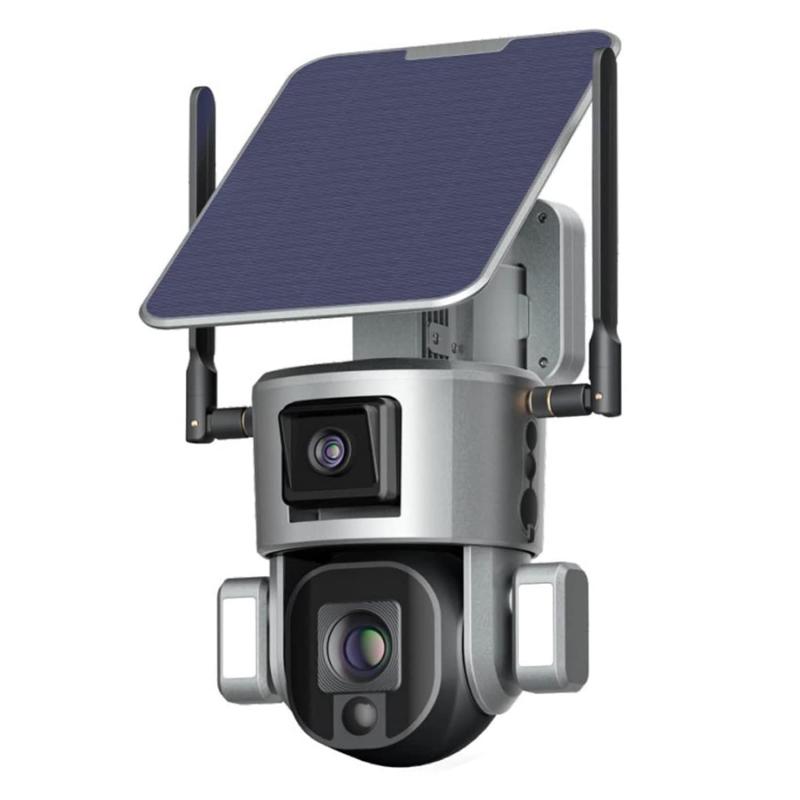
Setting up wireless security cameras isn’t just a one-time exercise—it’s an ongoing relationship with technology. Done right, it’s a blend of foresight, technical understanding, and a sprinkle of patience. With each step you’ve taken, you’re fortifying your home, enjoying peace of mind, and possibly saving yourself from future headaches. Who knew installing security cameras could make you appreciate both angles of coverage and metaphorical layers of protection?