Can I Connect Action Camera To Mobile Phone?
Action cameras have become indispensable companions for adventurers, vloggers, and tech enthusiasts alike. With their compact size and ability to capture high-quality, immersive footage, these cameras are perfect for documenting life’s most exciting moments. But when it comes to connecting an action camera to a mobile phone, the process can seem daunting to first-timers. Fear not. This article will guide you through the technology, tips, and potential challenges involved, leaving no stone unturned in the quest for seamless connectivity.
Peer-to-Peer Connectivity: Common Methods Explained
Most modern action cameras are equipped with wireless connectivity options that make pairing with a smartphone relatively straightforward. The two primary methods you'll encounter are Wi-Fi and Bluetooth, with some brands offering proprietary apps to facilitate the connection.
Wi-Fi Direct
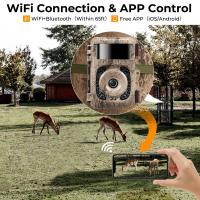
Wi-Fi Direct is the most common connectivity option for action cameras, as it enables the camera to communicate directly with your phone without relying on an external router. When enabled, the action camera broadcasts a local Wi-Fi network that your phone can join. Once connected, you can access a live feed, transfer files, adjust camera settings, or even control the camera remotely—essentially turning your smartphone into a command hub.
Here’s how to set it up:
1. Switch On Wi-Fi Mode: Navigate the camera’s settings menu to enable Wi-Fi Direct.
2. Locate Network Details: Your camera will display its SSID (Wi-Fi name) and password, often on the screen or in the user manual.
3. Connect Your Mobile: Open your phone’s Wi-Fi settings and join the network.
4. Download Manufacturer’s App: Popular brands like GoPro, DJI, and Insta360 offer dedicated apps (e.g., GoPro Quik, DJI Mimo) to complete the pairing process. Log in and follow any in-app instructions.
One caveat of Wi-Fi Direct is that it's power-hungry. Your action camera and smartphone's batteries might drain faster when using this method—keep that in mind during long outings.
Bluetooth Pairing
While less common for live feeds and video transfers due to bandwidth limitations, Bluetooth can be an excellent option for sending smaller files (like photos or burst clips) and performing lightweight tasks such as firmware updates or toggling the camera's settings.
Pairing via Bluetooth usually involves a similar process:
1. Activate Bluetooth on your camera and phone.
2. Search for the camera in your phone’s Bluetooth settings.
3. Confirm pairing, and you’re good to go.
Bluetooth is particularly appealing for applications where simplicity trumps speed, but if you’re transferring high-definition videos, Wi-Fi Direct remains the better choice.
The USB-OTG Route: Wired Connections with Extra Benefits
For action cameras lacking wireless capabilities—or if you simply prefer a more dependable solution—connecting via USB On-The-Go (OTG) is another viable approach. OTG enables your phone to act as a host device, directly accessing the camera’s internal storage.
What You’ll Need:
- A compatible USB cable (often USB-C male-to-USB-C male or micro USB-to-USB-A, depending on your camera’s port and your phone’s capabilities).
- USB-OTG adapter (if your phone doesn’t have a direct OTG-enabled port).
- File management app (such as Solid Explorer or native file apps, like Google Files).
Steps to connect:
1. Plug the camera into your phone using the USB cable and OTG adapter.
2. Wait for your phone to detect the external drive (your camera storage).
3. Open your preferred file management app to browse, copy, or transfer videos and images.
A huge perk of wired connections lies in the reliable data transfer speed, especially if you’re working with large 4K or 8K video files. However, you lose the remote control and live-feed features that Wi-Fi and proprietary apps offer.
Compatibility Challenges: What to Watch For
While connecting your action camera to a smartphone is usually painless, you might encounter pitfalls that derail the process. Here are common issues to be mindful of:
Firmware Gaps
Older action cameras might not be compatible with the latest smartphone OS updates or lack support for newer apps. Check your camera’s firmware and install any updates provided by the manufacturer before attempting to connect. Likewise, ensure the app you’re using is compatible with your mobile OS version.
App Glitches
Dedicated apps can be buggy, especially if your phone has aggressive background app management settings. If the app unexpectedly disconnects or freezes, try clearing its cache or re-installing it.
Bandwidth Bottlenecks
Wi-Fi connectivity works well for short distances (up to 10-15 meters), but you’ll notice reduced speed—and possibly interference—when obstacles like walls or networks using similar frequencies are present.
Limited Device Support
Not all phones support USB-OTG functionality out of the box. Double-check your phone’s manufacturer specifications or look for OTG tutorials specific to your device model.
Special Features: Maximizing the Connection
Once you’ve successfully connected your action camera to your smartphone, a world of possibilities opens up. Take advantage of the following features to amplify your content creation workflow:
Live Streaming
Several action cameras support live-streaming directly to social media platforms such as YouTube, Facebook, or Instagram when paired with their apps. Your smartphone acts as the internet gateway, letting you broadcast adventures in real time with minimal fuss.
Advanced Remote Controls
Turn your phone into a creative cockpit with advanced settings like time-lapse configuration, burst shooting, or even toggling exposure and white balance without disrupting the camera’s physical setup.
Easy Editing
Proprietary apps often offer robust video editing features to polish captured footage directly on your phone. Add text overlays, stabilize shaky footage, and splice clips into action-packed montages without needing a dedicated computer.
When All Else Fails: Troubleshooting
If you’ve exhausted all avenues and still can’t get your camera connected, don’t panic—there are always fallback plans. Use a microSD card reader or adapter to transfer files manually, or check whether your camera supports third-party apps that could sidestep compatibility issues. A quick Google search for your camera model and smartphone brand might uncover useful workarounds, often shared by users in online forums like Reddit or tech communities.
Connecting an action camera to your phone isn’t just about adding convenience—it’s about unlocking enhanced control, leveraging editing tools, and streamlining how you handle your content in dynamic environments. Whether you opt for the speed and flexibility of wireless methods or the reliable precision of USB-OTG, mastering this process can take your adventures to the next level. So, grab your gear, and happy shooting!