How To Install Security Camera In Car?
Installing a security camera in your car might seem like a daunting task, but when done correctly, it can elevate your vehicle’s safety game to the next level. Whether you're trying to deter break-ins, keep tabs on your parked car, or record mishaps on the road, a properly set-up security camera is your solution. Let’s dive into the nuts and bolts of making your car the Fort Knox of vehicular protection.
Step 1: Selecting the Right Camera for Your Needs
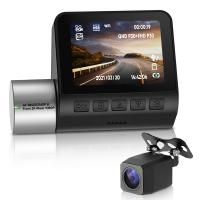
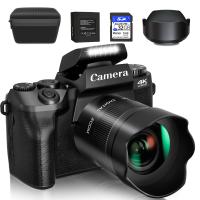
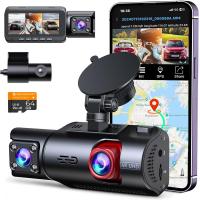
The first thing you need is the right security camera. Dash cams can be split into several broad categories—front-facing, dual-channel (front and rear), or 360-degree cameras that also monitor the cabin.
What should you look for in a camera? Key features include high-definition video capture (preferably 1080p or above), night vision for low-light recording, loop recording for continuous footage storage, G-sensors to detect sudden motions or crashes, and Wi-Fi connectivity for easy video downloads. Some advanced models even offer remote live feed access, perfect for paranoid car owners (no judgment here).
Spend some time surveying the market or reviews online before dishing out the dough. Prices run the gamut, so figure out what suits your budget and aligns with your needs.
Step 2: Plan the Installation Layout
Where should the camera go? Most commonly, a dash cam is mounted behind your rearview mirror so it can record road activity without obstructing your view.
If you're installing multiple cameras (e.g., rear and cabin-facing), you might need to plan ahead. Rear cameras often mount near the inside of the rear windshield, while cabin cameras are positioned to monitor passengers or your own driving.
Keep this layout simple and efficient. Remember, the fewer wires dangling around like party decorations, the better.
Step 3: Get Familiar with Power Sources
Your car security camera needs juice to do its job. Thankfully, most modern dash cams are built with a plug-and-play philosophy when it comes to power:
1. Cigarette Lighter/12V Port: The simplest way to power your camera is by plugging it into your car's 12V port. Most dash cams come with a long power cable designed for this exact purpose. The downside? An occupied 12V port means you won’t have easy access to charge your phone or power other devices.
2. Hardwiring to the Car’s Fuse Box: If you prefer a cleaner, professional setup, hardwiring the camera to your vehicle's fuse box is an excellent choice. This often ensures the camera powers on and off automatically with your car’s ignition. For this option, you’ll likely need a hardwire kit (most brands sell them separately).
3. Battery-Powered Cameras: Some cameras operate independently using rechargeable batteries. These are convenient but beware—they need regular charging and may have limited recording time compared to wired models.
4. OBD Port Setup: For tech-savvy enthusiasts, plugging into your car's OBD (On-Board Diagnostics) port is viable. These aftermarket accessories are particularly helpful for powering advanced dash cam systems.
Choose the power source based on convenience and technical expertise. If you plan to hardwire, consider consulting a professional.
Step 4: Mounting the Camera
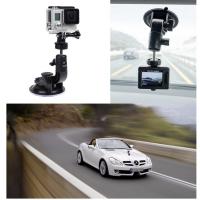
Proper mounting is critical for optimal performance. Most cameras use suction cups or adhesive mounts for installation.
1. Clean the Mounting Surface: Start by cleaning the windshield or surface where your camera will be mounted. Use an alcohol wipe to remove dirt and oil—otherwise, that fancy high-definition camera could end up plummeting to the floor during a sharp turn.
2. Position Strategically: Attach the camera so it doesn’t obstruct your view while driving. For dash cams, place it directly behind the rearview mirror. Rear cameras, if applicable, should be positioned on the upper center of the rear windshield. Use the live feed during setup to make sure you’re optimizing the field of view.
3. Hide and Secure the Wires: One of the most tedious yet crucial elements is routing wires. Snake them carefully around edges, behind panels, or under the floor mats for a clean look. Cable clips or adhesive wire guides can help reduce clutter. Bonus points if no one can tell it’s even there.
Step 5: Configuring the Camera’s Settings
Once installation is complete, take the time to configure your camera’s settings:
Video Resolution and Frame Rate: Set the resolution to the highest option your camera offers, ideally 1080p (or 4K, if available). Adjust the frame rate to 30 fps or higher for smooth footage.
Loop Recording: Enable loop recording to ensure older footage is automatically overwritten when storage space runs out. (Trust me, you don’t want to miss capturing the moment a stray shopping cart takes a swipe at your bumper.)
Time and Date Stamp: Set an accurate time and date stamp on the videos. This can be invaluable for insurance claims or potential legal proceedings.
Motion Detection and G-Sensors: Ensure your motion sensors and gravity detectors are calibrated. These will activate the camera when sudden movements or possible collisions occur.
Step 6: Testing the System
Now that everything is set up, it’s time to test. Start your car and check that the dash cam powers on automatically. Drive around a bit to verify that the camera is capturing quality footage and everything is in focus. Test night recording mode too—this often reveals lower-quality cameras.
Don’t forget to test the angle. If your footage looks like it's taking a cinematic shot of the clouds or focusing exclusively on your dashboard, adjust accordingly.
For cabin cameras, ensure they capture your intended area. Same goes for rear cameras—ideally, they should capture objects within a safe distance of your car’s bumper.
Step 7: Regular Maintenance
Once gone, chances are they won’t come back—dust and grime, that is. Regularly clean your camera lens to ensure clear footage. Check wires occasionally for wear and tear, especially for hardwired setups. Replace your memory card as needed (high-write endurance options are ideal if you’re recording continuously).
Lastly, stay familiar with your camera settings as firmware or app updates may alter features. Staying ahead of these updates can ensure your camera’s reliability.
Final Thoughts
By following these steps, you’re not just installing a security camera—you’re building a mini watchtower for your vehicle. Apart from the personal peace of mind, a camera could save tens of thousands in insurance claims, provide clarity during disputes, or simply help you relive good road trip memories.
So, crank open your toolbox (or borrow one from a friend) and channel your inner DIY mechanic. Remember, security is priceless—but the satisfaction of a job well done? That comes free and included.
Ready to hit the road with your Sherlock Holmes-grade surveillance setup?