What Memory Card For Childrens Digital Camera?
Finding the perfect memory card for a child's digital camera might not seem like a life-altering decision, but picking the right one can make all the difference between frustration and smooth sailing. With today’s variety of memory card options—ranging from ridiculously fast to insanely expensive—it’s easy to feel overwhelmed. But never fear—this article cuts through the technical jargon like a hot knife through butter and delivers clear, actionable advice with a dose of common sense.
Why Memory Cards Matter (Even for Kids’ Cameras)
When you buy a digital camera for your child, you’re essentially investing in their creativity. But even the most entry-level cameras need somewhere to store those masterpieces. A memory card acts as the digital equivalent of canvas space in modern artistry. Choose poorly, and you end up dealing with error messages, "low storage" warnings, or even a grumpy child whose fantastic photo of the family dog just got lost due to issues with the card.
But here’s the kicker: not every child needs a high-performance, astronaut-grade memory card. Kids capture moments of fun—crooked selfies, blurry action shots of playground antics, or their "artistic" toe close-ups—not high-definition travel documentaries. Their requirements differ significantly from those of, say, a professional photographer shooting weddings. This means you can focus on finding an appropriate, budget-friendly option tailored to their camera specifications and day-to-day use.
Key Factors to Consider When Choosing a Memory Card
If you’re staring at an aisle (or webpage) full of memory cards labeled with intimidating acronyms and confusing storage capacities, it helps to know what matters most. Here are five critical factors to focus on:
1. Compatibility:
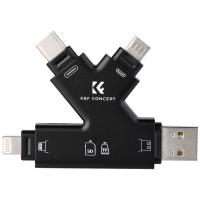
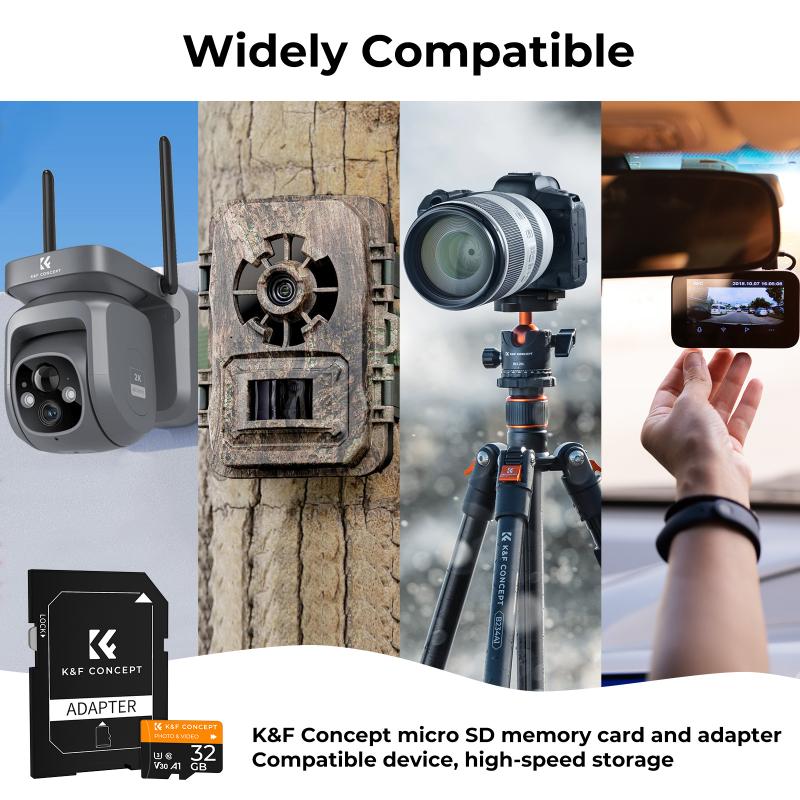
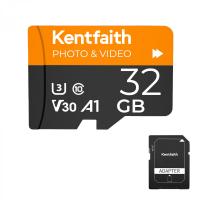
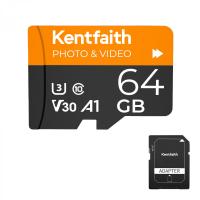
Not all memory cards are created equal. Some cameras support SD cards, while others require microSD cards. Check your child's camera manual (or do a quick Google search) to determine which type is compatible. Buying a smaller microSD card with an adapter can be useful if the camera accepts standard SD cards. The adapter lets you easily switch the card between different devices, adding versatility that comes in handy for growing kids.
2. Storage Capacity:
Your kid’s camera likely doesn't shoot in 4K resolution or RAW format, so choosing a card with excessive storage capacity might be overkill. For most children’s digital cameras, 16GB or 32GB memory cards will suffice. These sizes store thousands of photos without breaking the bank. They also encourage your child to periodically transfer pictures to a computer or phone, preventing the camera from becoming cluttered with random snapshots they’ve forgotten about.
3. Speed Class:
Ever heard of SD card speed classes? If not, welcome to the world of numbers with hidden significance! Speed classes like Class 10 or UHS Speed Class 3 (U3) indicate how quickly the card can write and transfer data. For kids’ cameras, basic Class 10 cards (minimum write speed: 10 MB/s) are more than adequate. You don’t need cards engineered for high-speed burst photography, so skip the premium ones unless they’re on sale.
4. Durability:
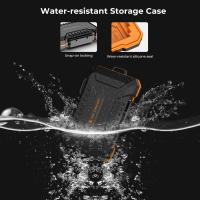
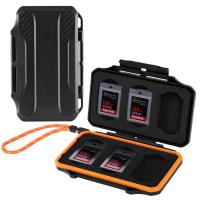
Sure, it might just be a memory card, but if your kid is like most kids, things tend to get dropped, misplaced, or exposed to juice spills and mystery liquids. Look for memory cards that boast shockproof, waterproof, temperature-proof, or X-ray-proof claims. These features often come in handy with the unpredictable chaos that accompanies children.
5. Price-to-Performance Balance:
Let’s face it—your child won’t notice if the memory card is a top-of-the-line model. Spending $100 on a memory card for a camera that costs $50 doesn’t make sense. Budget options from trusted brands like SanDisk, Kingston, or Samsung often strike an excellent balance between affordability and reliability.
Practical Recommendations
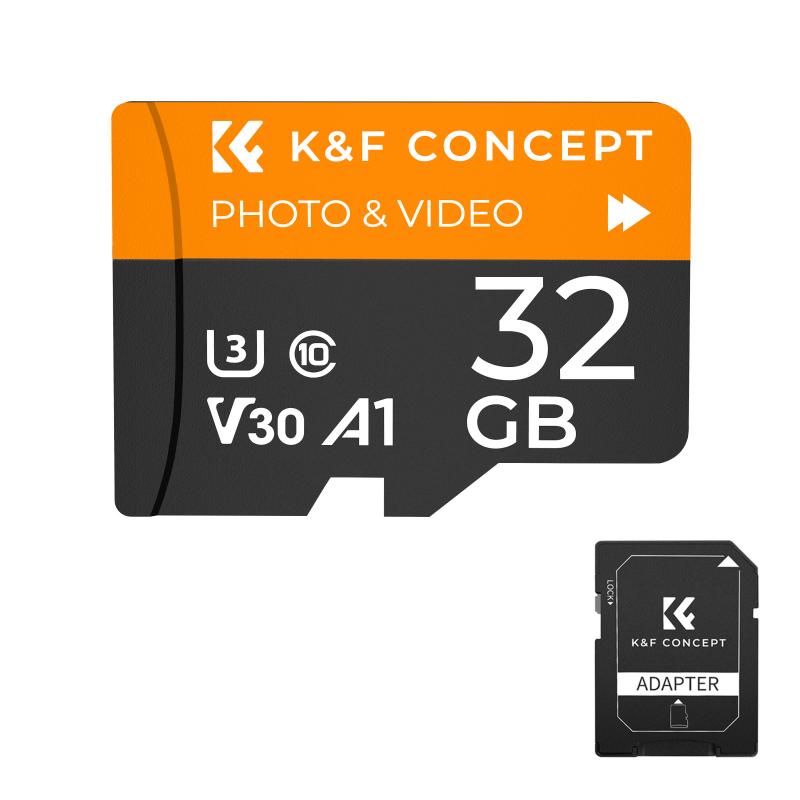
So, which memory cards fit the bill? Let’s narrow down the search:
1. SanDisk Ultra SD Card (16GB or 32GB):
Affordable, reliable, and widely available, this card is perfect for most children’s cameras. It offers Class 10 speeds, handles everyday use flawlessly, and doesn’t come with unnecessary frills that inflate the price.
2. Samsung EVO Select MicroSD Card (with Adapter):
This microSD card offers versatility, good speeds, and a trusted brand name. If your child’s camera requires an SD card, the included adapter transforms the microSD into a standard-sized card.
3. Kingston Canvas Select Plus MicroSD Card:
Known for its durability, this budget-friendly option handles accidental drops and sticky fingers like a champ. Choose the 16GB or 32GB version for maximum cost-efficiency.
4. Lexar High-Performance MicroSD Card:
While not as well-known as SanDisk or Samsung, Lexar offers quality cards at competitive prices. Their cards are beginner-friendly and feature adequate speed.
Dos and Don’ts for Managing Memory Cards
Equipping your child with the right memory card is only half the battle—how they use and care for it matters too. Here are some life-saving tips to keep frustration at bay:
DO:
- Reinforce good habits by regularly transferring photos to a computer or cloud storage. Teach kids to back up their content, even if that "dog nose close-up" might seem forgettable now.
- Label memory cards if your child has more than one. A small sticker or marker can save you from future confusion.
DON’T:
- Don’t remove the card while the camera is turned on—data corruption can occur. Teach your child this crucial technique upfront.
- Avoid cheap, no-name memory cards from questionable sources. Buying counterfeit products risks losing beloved pictures or damaging the camera itself.
Troubleshooting Common Issues
Perhaps your child is complaining that the camera “won’t take pictures anymore.” Enter tech detective mode! Usually, the culprit is a full or improperly formatted memory card. Here’s how to troubleshoot:
1. Check Storage Space:
Plug the memory card into a computer to see if it’s nearing full capacity. If so, free up some space.
2. Format the Memory Card:
If the camera keeps rejecting the card, you might need to format it. Dive into the camera’s settings menu or use a computer for formatting—but remember that formatting erases all stored data.
3. Inspect Physical Damage:
Bent pins or signs of wear could indicate that the card needs replacing.
Choosing the right memory card might not evoke applause from your child, but it could very well save you hours of troubleshooting and tech support. The harmony of compatibility, affordability, and a touch of durability makes all the difference. Whether you opt for a SanDisk Ultra or a budget Kingston Canvas Select Plus, one thing is clear: a thoughtful decision now ensures your little photographer has all the tools they need to capture life’s fleeting, sometimes comical, moments. Don’t forget—some of those toe close-ups might actually look artistic someday!
![4K Digital Camera for Photography & Video [Autofocus and Stabilisation] 48MP 16X Digital Zoom 3” 180° Flip Screen Vlog Camera with 32G SD Card, Flash Kentfaith](https://img.kentfaith.de/cache/catalog/products/de/GW41.0065/GW41.0065-1-200x200.jpg "4K Digital Camera for Photography & Video [Autofocus and Stabilisation] 48MP 16X Digital Zoom 3” 180° Flip Screen Vlog Camera with 32G SD Card, Flash Kentfaith")