How To Transfer Pictures From A Digital Camera?
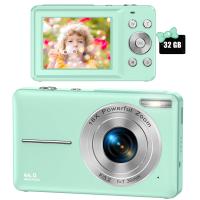
Transferring pictures from a digital camera to another device, such as a computer or smartphone, is a common task for photography enthusiasts and casual users alike. With the advent of technology, the process has become increasingly streamlined, but the specific steps may vary depending on the type of camera, device, and connection method you are using. In this article, we’ll explore different methods of transferring pictures from a digital camera, providing guidance on how to do so efficiently while addressing potential challenges.
Understanding the Basics

Before diving into the methods, it’s important to understand the key factors that affect picture transfer:
1. File Format: Digital cameras often capture photos in formats such as JPEG and RAW. RAW files are larger and may require specific software to open.
2. Transfer Medium: Options include physical connections (USB cables), memory card readers, wireless transfers, or direct sharing via apps.
Knowing these basics will help you choose the most appropriate transfer method based on your device compatibility and preferences.
Method 1: Using a USB Cable

The simplest and most commonly used way to transfer pictures from a camera to your computer is via a USB cable. Most digital cameras come with a USB cable that can directly connect the camera to the computer.
Steps:
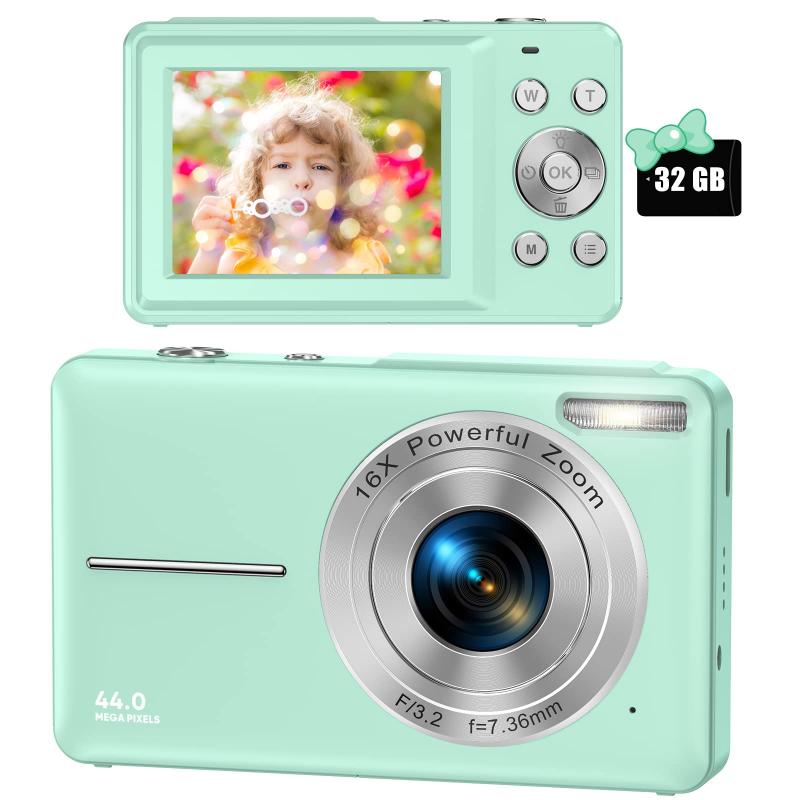
1. Connect Your Camera to the Computer: Plug one end of the USB cable into the camera and the other end into the computer’s USB port.
2. Turn On the Camera: Many cameras automatically switch to a “transfer mode” when connected to a computer. If not, ensure the camera is powered on.
3. Access Camera Files: On Windows, the camera will appear as a removable drive in File Explorer. On macOS, it will show up in Finder.
4. Copy and Paste Photos: Open the camera’s storage folder, often named “DCIM,” and locate your photos. You can drag and drop them into a folder on your computer.
Advantages:
- Easy and widely supported method.
- Reliable for large file transfers.
Challenges:
- Requires cables, which might not always be readily available.
- Some older cameras may require driver installation or software updates.
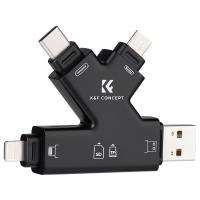
Method 2: Using a Memory Card Reader
Most digital cameras save photos to removable memory cards such as SD cards. Using a memory card reader is a quick and convenient way to transfer files without directly connecting your camera.
Steps:
1. Remove the Memory Card from the Camera: Carefully eject the memory card from the camera to avoid damage to the card or its data.
2. Insert the Card into a Reader: Memory card readers are often built into computers or available as external devices. Insert the card into the appropriate slot.
3. Access the Card on Your Computer: Navigate to File Explorer or Finder to access the contents of the memory card.
4. Transfer Files: Like the USB method, you can copy photos from the card and paste them into a folder on your computer.
Advantages:
- Doesn’t require the camera to be physically present during transfer.
- Allows easy transfer if the camera battery is dead.
Challenges:
- Some computers lack built-in card readers, necessitating external ones.
- Risk of losing or damaging the memory card during handling.
Method 3: Transferring Wirelessly (Wi-Fi or Bluetooth)
Many modern cameras are equipped with wireless connectivity options like Wi-Fi, Bluetooth, or NFC, allowing users to transfer pictures without any physical connection.
Steps:
1. Enable Wireless Mode on Camera: Turn on Wi-Fi or Bluetooth from the camera’s settings menu.
2. Pair to Your Device: Connect the camera to your computer or smartphone using Wi-Fi or Bluetooth. You may need to install the manufacturer’s app to facilitate pairing.
3. Select Photos to Transfer: Most camera apps allow users to preview and select specific photos for transfer.
4. Download Photos: The photos are either sent directly to your device’s gallery or downloaded via the app.
Advantages:
- No need for cables or card readers.
- Convenient for transferring smaller files quickly.
Challenges:
- Wireless transfer speeds are generally slower than wired options.
- Limited to cameras and devices with wireless functionality.
- Requires pairing and app setup, which can be cumbersome for first-time users.
Method 4: Direct Online Transfers
Some high-end cameras and smartphones offer cloud or online storage integration, such as Google Drive, Dropbox, or proprietary services like Canon Image Gateway.
Steps:
1. Connect Camera to Wi-Fi and Cloud Storage: Configure the camera to connect to your home’s Wi-Fi network and log into your cloud storage account.
2. Upload Photos: Select photos from the camera and upload them directly to the cloud.
3. Access Photos from Other Devices: Open the cloud service on your computer or smartphone to view and download the photos.
Advantages:
- Allows remote access to photos from multiple devices.
- Minimizes storage concerns.
Challenges:
- Requires an active internet connection for uploads and downloads.
- May incur additional costs for cloud subscriptions.
- Uploads can be time-consuming for large files.
Troubleshooting Common Issues
Sometimes, you might encounter challenges during picture transfer. Here are solutions to some of the most common issues:
Problem 1: Computer Doesn’t Recognize the Camera
- Check the cable connections and ensure the camera is powered on.
- Try using another USB port on your computer.
- Install the necessary drivers that might be required for your camera model.
Problem 2: Wireless Transfer Fails
- Ensure both devices are connected to the same Wi-Fi network.
- Restart your camera and device to reset any connectivity issues.
- Check for firmware updates for your camera.
Problem 3: Files Are Missing or Corrupted
- Verify the integrity of files on your camera before transferring.
- Use recovery software to restore missing files from your camera or memory card.
Problem 4: Transfer Speed Is Slow
- Optimize wireless settings by ensuring minimal interference from other devices.
- Use a cable or memory card reader for faster transfer speeds.
Tips for Efficient Photo Management
Transferring photos is only part of the process—you also need to manage them effectively to save time and keep track of your files. Here are a few tips:
1. Organize Files: Create dedicated folders with meaningful names and dates to store photos.
2. Use Software for Bulk Edits: Photo editing software like Lightroom or Photoshop can batch-process files for ease of editing.
3. Regular Backups: Store your photos on external hard drives or cloud storage to avoid data loss.
Conclusion
Transferring pictures from a digital camera may seem straightforward, but selecting the right method can significantly improve efficiency and convenience. Whether you opt for a USB cable, memory card reader, wireless transfer, or direct cloud upload, understanding the process and addressing common issues will ensure hassle-free operation. With proper photo management techniques, you can safeguard your precious memories and streamline your photography workflow. By applying the insights in this guide, you can focus on what’s most important—creating and enjoying stunning photographs.