How To Get Wifi For 2 Cameras?
Setting up a WiFi connection for two cameras might sound as straightforward as switching on your router and entering a magic code, but once you dive into the nuances, you'll find that it's a symphony of connectivity, bandwidth management, security precautions, and thoughtful placement. Here's your step-by-step guide to accomplishing this with precision and avoiding the common headaches that might turn your WiFi adventure into a Netflix buffering nightmare.
Step One: Know Your Hardware Like You Know Your Netflix Password

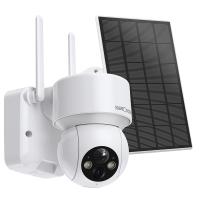
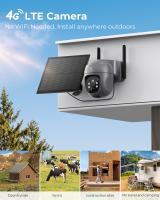
Before diving into setup instructions, start with understanding the devices you’re working with. Are we talking about security cameras, DSLR cameras equipped with WiFi modules for live streaming, or some other WiFi-enabled camera that has its own app ecosystem? Regardless, the real question is whether these cameras talk directly to your router or if they rely on a bridge, a proprietary hub, or an intermediary device.
Look up the specs of your cameras—WiFi frequency band supported (2.4 GHz vs 5 GHz), encryption protocols (WPA2, WPA3), and whether they're limited to certain types of networks (public vs private). These details are spy-level important because configuring unsupported features will lead you to the land of frustration.
Step Two: Assess Your WiFi Battlefield
Your WiFi router's bandwidth is like the food supply on a deserted island—it’s limited. Video streaming cameras, especially high-definition ones, are notoriously greedy. Connecting a couple of cameras will create a significant data-drain within your network, which might lead to stuttering streams or slower browsing speeds for other devices leeching off that same connection.
You’ll need to check two things here:
1. Bandwidth availability: Video cameras, especially HD or 4K ones, consume anywhere between 1 Mbps (low-quality stream) to 6 Mbps or higher for HD streams. Multiply this by two cameras. Compare the total bandwidth consumption against your internet subscription plan.
2. WiFi signal strength: Cameras not only need data but also solid connectivity. If you plan to install one outside or in the garage and the other indoors closer to the router, the signal disparity might require adding a WiFi extender.
Use tools like a WiFi analyzer app to locate dead zones and decide where your cameras will comfortably reside without entering "no-signal limbo."
Step Three: Choose Your Fixer—Router Configuration Time

Now, the router is your control hub. Configuring it correctly is crucial. Start by ensuring:
1. SSID and Password Generation for Secure Access: Each device connecting to your WiFi needs encrypted access—WPA2 encryption is standard, and WPA3 is better. Cameras will often prompt an auto-connect setup with your WiFi, but you should confirm encryption standards in both camera settings and router details.
2. 2.4 GHz vs 5 GHz: Most consumer-grade security cameras work with 2.4 GHz WiFi due to its broader range. However, if yours support dual-band connectivity and your router deploys a 5 GHz signal, go for it—it’s faster and less congested in urban areas.
3. Static IPs for Cameras: Giving your cameras static IP addresses can dramatically simplify troubleshooting. If the cameras occasionally disconnect and reconnect to new IPs in a dynamic addressing setup, keeping track can become tedious. Your router settings will allow you to assign specific IPs based on MAC addresses.
4. Dedicated Data Allocation (Optional): Some modern routers provide the option to prioritize bandwidth for specific devices or activities (e.g., streaming). Allocate priority bandwidth to your cameras for a lag-free experience.
Step Four: Placement and Physical Setup
Proper placement of your cameras is not going to be a game of "eeny, meeny, miny, moe." WiFi connectivity is painfully dependent on line-of-sight and physical obstructions. Environmental objects like concrete walls, large metal surfaces, or even fish tanks can attenuate signals. Here are some guidelines:
- Place cameras where the signal is strong and consistent, usually within 50 to 100 feet from your router on a 2.4 GHz network. For 5 GHz networks, stay under 40 feet unless you want patchy connectivity.
- Avoid putting both cameras close to speakers, microwaves, or anything that spews electromagnetic noise like a toddler’s tantrum at meal time.
- If your cameras need outdoor placement, consider a weatherproof WiFi extender to amplify the range without compromising signal strength.
Step Five: Implement a Dual-Network Strategy (If Necessary)
Sometimes, the WiFi congestion issue doesn’t come from cameras themselves but from the army of other smart-home devices sharing the network. Lights, thermostats, TVs, and phones can quickly choke your bandwidth. Here’s where splitting things out might help:
1. Dual Router Setup: Have one router handle your day-to-day devices (smartphones, TVs, laptops) and dedicate a second one specifically for stream-heavy gadgets like your cameras. Most ISPs readily provide additional routers, or you can set up your own secondary units cost-effectively.
2. Mesh Networks: If having two routers sounds over-complicated, mesh networks might be your salvation. Mesh systems create a blanket WiFi across your home, distributing consistent signals to priority devices (like your cameras) without requiring you to juggle networks.
With this strategy, your cameras enjoy their exclusive network space and no jealous fights between your vacuum cleaner and Netflix binge-watch parties.
Step Six: Troubleshoot and Test
Now it's time to launch the cameras into action. Test the video streams for both cameras simultaneously, carefully observing quality under normal household WiFi load. Look for frame drops, lag, or disconnects. A hiccup here might indicate:
- Router firmware requiring an update.
- Cameras positioned too far from the router or extender.
- Bandwidth oversaturation by competing devices.
- Improper data prioritization on your router.
Create a networking “checklist” for ongoing maintenance. WiFi networks change due to new devices being added, router firmware updates, or even changing weather conditions (believe it or not, massive networks experience slight disruptions due to humidity changes).
Step Seven: Go Full Spy Mode on Security
If you don't want some random stranger hacking into your cameras and watching your cats sleep like some creepy voyeur, never underestimate the importance of strong security measures:
Encryption: Again, stick with WPA3 or at least WPA2—but absolutely never “open” networks.
Security Updates: Spoiler alert—hardware isn’t immune to cyber vulnerabilities. Periodically check if the cameras and router have firmware updates. Manufacturers frequently patch bugs and loopholes that hackers love exploiting.
VPN Layer: If the cameras contain sensitive feeds, consider running their traffic through a VPN service for added encryption.
Step Eight: Enjoy the Show, Responsibly
Once everything’s set up and connectivity is stable, it might be tempting to leave things “as is.” Don’t. Technology thrives on active, periodic maintenance. Watch for firmware updates, inspect your internet bill for unexplained bandwidth spikes, and occasionally run network performance diagnostics to ensure everyone's playing nice.
Congratulations—you’re now the proud overseer of two WiFi-enabled cameras poised to keep your space secure, document memories, or possibly stream your charismatic goldfish to global fame. Who’s the tech wizard now?