

How To Format Sd Card On Camera Canon?
When it comes to cameras, a clean and well-functioning SD card is like a sharp, dependable blade for a chef. It’s essential for smooth performance and keeping your creative workflow uninterrupted. Formatting an SD card on a Canon camera might sound like a mundane topic, but there’s a lot to unpack here. Let me guide you through the steps, while dropping some knowledge bombs along the way that might spare you some headache (and heartache) in the future. Because when we talk about formatting, we’re talking about much more than pressing a few buttons. Let’s dive in.
Why Format an SD Card?
Before we get into the "how," let’s tackle the "why." Formatting isn’t just about erasing all the data on the card. It’s like renovating your digital home—it clears out clutter, optimizes the space, and ensures the card works seamlessly with your device. Here are some common scenarios where formatting becomes your knight in shining armor:
1. Starting Fresh: When a card is brand new, formatting it ensures it's configured correctly for your camera.
2. After a Backup: Erased files often leave behind fragments that clog up the card. Formatting wipes it clean, no questions asked.
3. Fixing Issues: Corrupted files? Odd behavior? Formatting can be the cure.
4. Switching Devices: Moving an SD card between devices without formatting is like trying to speak French in Japan. Sometimes it works, but mostly, it’s a recipe for miscommunication.
In short, formatting is organization meets troubleshooting meets preventative care.
The Prep Work: What You Need to Do Before Formatting
Let’s take a quick trip down memory lane. Formatting wipes everything without mercy—yes, everything. That photo you took of a breathtaking sunset last summer, or that sneaky selfie your friend insisted they’d delete? Gone. Forever. To dodge digital heartbreak, back up your files to a computer, cloud storage, or your external drive of choice before proceeding. No one wants to be the person crying at tech support because they lost wedding photos to an overzealous formatting decision.
Once your precious memories are safeguarded, check these last-minute items off your list:
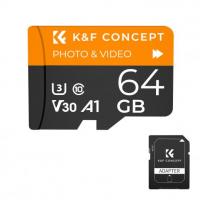
- Make sure the SD card is compatible with your Canon camera and meets the speed requirements for photos or videos you plan to capture.
- Ensure your card isn’t physically damaged (scratches, cracks, or bent pins)—it’s like putting a broken tire on a sports car; it just won’t go.
- Verify that the battery of your camera is sufficiently charged. Formatting could fail midway if batteries run low, potentially corrupting the SD card.
Ready? Let’s talk shop.
How to Format Your SD Card on a Canon Camera
Now for the moment you’ve been waiting for—executing the formatting process. The good news? Canon makes this process as painless as possible. The bad news? One small mistake could lead to irreversible decisions. But don’t worry; as long as you follow the steps below, you’ll be in safe hands.
Step 1: Insert the SD Card Correctly
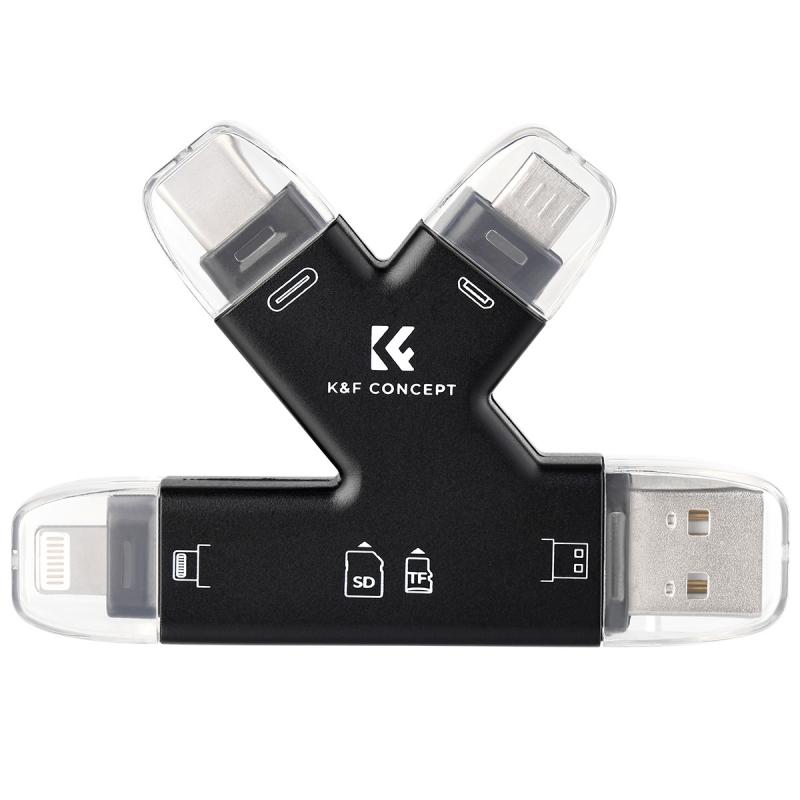
Start by inserting the SD card into your camera’s memory card slot. Ensure it’s facing the correct direction—otherwise, you may damage either the card or the camera. If you hear a satisfying click, you’re good to go.
Step 2: Power On Your Camera
Turn on your Canon camera. This step is simple, but never underestimate the importance of powering devices correctly. If your camera allows for a variety of power modes (e.g., standby mode), make sure it’s fully active and operational.
Step 3: Navigate to the Settings Menu
Here’s where things get slightly technical:
- Press the Menu button on your camera to bring up the settings interface.
- Look for the Setup tab. Depending on your Canon model, this might be represented by a wrench icon (Canon loves its intuitive graphic design).
Step 4: Locate the Format Option
Scroll through the Setup tab until you find the Format card option. Select it. If your camera model has multiple cards (dual-slot cameras), ensure you’re formatting the correct one.
Step 5: Initiate Formatting
Once you select the format option, your camera will likely prompt you with a warning—something along the lines of “All data will be erased. Continue?” Treat this screen with the seriousness of a signed declaration of war. Verify that you’ve backed up your data and hit OK.
Step 6: Wait for the Process to Complete
The camera will take a few seconds (or minutes) to format the SD card. Try not to interrupt this process. Feel free to zone out or admire your camera’s ergonomic design in the meantime.
Step 7: Verify Success
Once formatting is completed, the camera will give you a notification or simply kick you back to the menu screen. You can verify success by snapping a quick test photo and checking if everything works smoothly.
Formatting Tips for the Pros
Formatting is straightforward if all goes well, but often, life throws curveballs. To maximize your efficiency and avoid frustration, keep the following advice in your arsenal:
1. Format In-Camera: While you can format an SD card using your computer, doing it directly in your Canon camera ensures that the file system is tailored specifically to the device.
2. Regular Maintenance: Even if you’re not switching devices, reformatting the card after every few shoots can help maintain performance and extend its life. Think of it as spring cleaning for your digital tools.
3. Use Reliable Cards: Brands like SanDisk and Lexar are industry favorites for a reason—they provide consistent speed and reliability. A poorly made SD card will cause frustration regardless of formatting.
4. Avoid Cheap Card Readers: When transferring data to your computer, cheap readers can corrupt the card. Invest in high-quality accessories that align with your camera’s capabilities.
5. Never Remove During Formatting: Pulling the card out while formatting is like yanking a USB drive mid-file transfer—it’s disastrous. Always let the process finish uninterrupted.
Troubleshooting Formatting Errors
Sometimes, formatting doesn’t go as planned. If your SD card refuses to comply:
- Try formatting it on your computer instead, using tools like SD Card Formatter from the SD Association. You can then reformat it in your Canon camera.
- Ensure the card's physical lock switch (on the side of standard SD cards) isn’t set to “LOCK.” This switch prevents writing or formatting.
If your camera repeatedly fails to format the card, it might be a sign of permanent damage. Consider replacing it. Better safe than losing valuable projects because of a dodgy card.
In Conclusion
Formatting your SD card isn’t just an essential skill—it’s an art form. Keeping your cards in top condition means smoother digital workflows, fewer compatibility issues, and, most importantly, carefree shooting wherever inspiration strikes. Like a chef sharpening their knife before chopping vegetables, formatting ensures your tools are primed to deliver their best.
So grab your Canon, follow these steps, and enjoy the satisfaction of a clean slate every time you format. Happy shooting!